
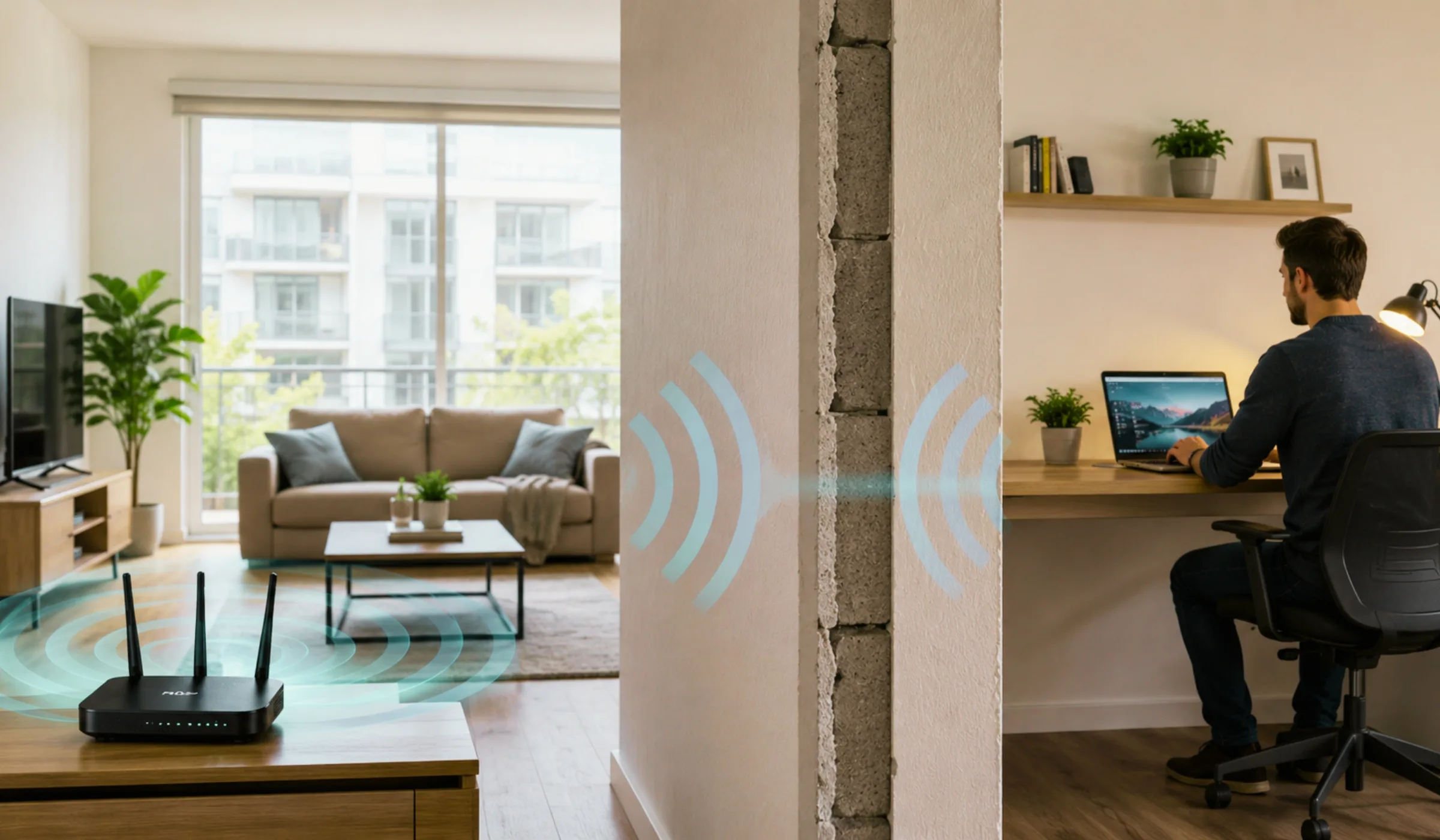
Full bars in the living room, one sad bar in the bedroom. If you rent, you know the drill: thick walls, a landlord-placed cable jack in the worst possible corner, and a “fast” internet plan that somehow can’t reach your couch. The walls aren’t going anywhere — but your Wi-Fi can still get a lot better.
The best part? Almost everything here is renter-friendly. No drilling, no rewiring, nothing you can’t undo on move-out day. Let’s get that signal through the wall.
TL;DR — Quick Answer
Why Do Walls Kill Wi-Fi Anyway?
Wi-Fi is just radio waves, and radio waves hate dense material. Every wall, floor, and door they pass through soaks up a little signal. In apartments, the usual culprits are the worst offenders: concrete, brick, and metal studs or ductwork can gut a signal, while older buildings sometimes hide lath-and-plaster or even lead paint that acts like a shield.
Here’s the kicker: the faster Wi-Fi bands (5 GHz and 6 GHz) are worse at punching through walls, not better. Higher frequency means more speed up close but weaker penetration through solid objects. So that shiny new router can actually feel worse two rooms away than your old one did. Understanding that trade-off is half the battle.
Concrete and brick block the most signal, followed by tile and stone, then plaster. Drywall, wood, and glass let the most through. If your dead zone is behind a concrete or brick wall, no amount of router-fiddling will fully fix it — you’ll want one of the hardware options below.
7 Free Fixes — Always Try These First
Before you spend a dime, work through these. People are genuinely surprised how often just moving the router solves everything.
Move it as close to the middle of your apartment as the cable allows. A router in the far corner wastes half its range on the parking lot.
Set it on a shelf or mount it high on a wall. Wi-Fi radiates slightly downward, so floor-level routers waste signal on the carpet.
Off the floor, out of cabinets, away from the TV. Enclosed spaces and electronics smother the signal before it ever reaches the wall.
If yours has external antennas, point some vertical and some horizontal. It spreads coverage across floors and rooms more evenly.
Keep it away from microwaves, fish tanks, mirrors, and metal shelving — all of these reflect or absorb Wi-Fi badly.
In a packed apartment building, neighbors’ networks cause interference. A free Wi-Fi analyzer app finds the least crowded channel.
Restart the router monthly and keep its firmware current. Old firmware quietly drags down speed and stability.
Don’t aim the router straight at your dead zone through the thickest wall. Sometimes angling it so the signal travels through a doorway or thinner wall on a diagonal path reaches the far room better than the direct shot. Experiment — move it a few feet and re-run a speed test in the problem room.
2.4 vs 5 vs 6 GHz: The One That Goes Through Walls
Most modern routers broadcast on multiple bands. Knowing which to use where is one of the most underrated apartment Wi-Fi tricks:
Slower top speed, but the best range and wall penetration by far. Connect far-away devices (bedroom TV, smart plugs, the office in the back) to this band.
Much faster, shorter reach, struggles through walls. Perfect for devices near the router — your main laptop, the living-room TV.
Blazing speeds with the weakest wall penetration of all. Great for a gaming rig beside the router; useless two concrete walls away.
Many routers auto-mix all bands under one network name and decide for you. If a distant device keeps dropping, that’s often the router stubbornly pushing it onto 5 GHz. The fix: split your bands into separate named networks (e.g. “Home-2.4” and “Home-5”) so you can manually connect far devices to 2.4 GHz.
When Free Isn’t Enough: 3 Hardware Fixes
If you’ve optimized placement and bands and that back bedroom is still a dead zone, it’s time for hardware. Here are your three renter-friendly options, no drilling involved.
1. Mesh Wi-Fi System — the gold standard
A mesh system replaces your router with a main unit plus one or more “nodes” you place around the apartment. Together they create one seamless network that blankets every room, and your phone hops between nodes automatically as you walk around. Modern mesh kits using Wi-Fi 6, 6E, or 7 with beamforming handle thick walls far better than a single router ever could. It’s the cleanest long-term fix — just pricier upfront.
2. Wi-Fi Extender / Booster — cheapest patch
An extender plugs into an outlet roughly halfway between your router and the dead zone, grabs the existing signal, and rebroadcasts it. It’s the budget option and easy to set up — but it typically cuts bandwidth (it’s sharing one connection) and often creates a second network name you have to switch to manually. Fine for one stubborn room; not ideal for whole-apartment coverage.
3. Powerline Adapter — beats walls entirely
This one’s clever. You plug one adapter into an outlet by your router (connected via Ethernet) and a second adapter into an outlet in the dead-zone room. The internet signal travels through your apartment’s existing electrical wiring, completely sidestepping those thick walls. The far adapter then gives you Ethernet or its own little Wi-Fi hotspot. Perfect when concrete walls make wireless hopeless.
Mesh vs Extender vs Powerline: Quick Comparison
| What matters | Mesh System | Wi-Fi Extender | Powerline Adapter |
|---|---|---|---|
| Best for | Whole apartment | One problem room | Rooms behind thick walls |
| Beats concrete/brick | Mostly | No | Yes |
| Speed kept | High | Drops a lot | Good (varies) |
| Single network name | Yes | Often no | Depends |
| Setup difficulty | Easy (app) | Very easy | Easy |
| Renter-friendly | Yes | Yes | Yes |
| Typical cost | $$$ ($120–400) | $ ($25–80) | $$ ($50–120) |
| Depends on wiring | No | No | Yes (outlet quality) |
So Which One Should You Buy?
You have dead zones in multiple rooms, want one network everywhere, and don’t mind spending more for the best all-around result.
You only have one weak room, you’re on a tight budget, and the wall between isn’t concrete or brick.
Thick concrete/brick walls make wireless hopeless, and you need a rock-solid connection in one specific room (great for a home office or gaming setup).
Big or oddly shaped unit? A mesh node plus a powerline run to the farthest room can cover layouts a single solution can’t.
Whatever you choose, look for Wi-Fi 6, 6E, or 7 with beamforming. These newer standards aim signal toward your devices and handle congestion and walls noticeably better than older Wi-Fi 5 gear — and prices have dropped a lot in 2026.
Sometimes It’s the Plan, Not the Wi-Fi
Here’s the honest truth: if your internet is slow in every room, even right next to the router, no extender on earth will save you. That’s not a coverage problem — it’s a speed problem. Either your plan is too slow for your household, or your provider just isn’t delivering.
If you’re juggling multiple people streaming, working, and gaming on a 100 Mbps plan, the walls aren’t your real enemy. Upgrading to a faster plan — or switching to a provider that gives you a better gateway and more speed for your money — fixes the root cause. Here are solid apartment-friendly options worth comparing:
5G Home Internet (easy renter setup)
T-Mobile 5G Home
$50
/month134–415 Mbps typical
- Plug-and-play, no technician
- Unlimited data, no caps
- 5-year price lock
- Take it with you when you move
Verizon 5G Home
$50–75
/month85–1,000 Mbps
- Fastest 5G speeds available
- Free router included
- 3–5 yr price guarantee
- $35/mo with a mobile line
AT&T Internet Air
$55
/monthUp to 225 Mbps
- Flat-rate, unlimited data
- No annual contract
- Free equipment
- Self-install in minutes
Cable Internet (more speed for big households)
Xfinity Internet
$40–100
/month300–2,000 Mbps
- Fastest cable speeds in US
- Gigabit widely available
- 99.9% reliability rating
- Good for 5+ device homes
Spectrum Internet
$30–70
/month100–1,000 Mbps
- No data caps
- No contracts required
- Free modem included
- 30-day money-back guarantee
Cox Internet
$30–165
/month100–2,000 Mbps
- Wide range of speed tiers
- Bundle discounts available
- Pro installation included
- Good customer-service ratings
Free Internet Consultation
Wi-Fi still weak after all this?
Free consultation · Available 7 days a week
Frequently Asked Questions
For whole-apartment coverage, a mesh Wi-Fi system is the best all-around fix. But if you’re up against solid concrete or brick, a powerline adapter often wins because it bypasses the wall entirely by running the signal through your electrical wiring. Both are renter-friendly and need no drilling.
Use 2.4 GHz for distant rooms. It’s slower at its peak, but it travels through walls and over distance far better than 5 GHz or 6 GHz. Keep your fast 5 GHz/6 GHz band for devices near the router, and connect the far-away ones to 2.4 GHz.
If you have weak signal in multiple rooms and want one seamless network, mesh is better — your devices roam between nodes automatically. An extender is cheaper and fine for a single problem room, but it usually loses bandwidth and may force you onto a separate network name. For most apartments with one or two dead zones, even a 2-piece mesh kit is the smoother experience.
Yes, often surprisingly well — especially through thick walls where wireless fails. The catch is that performance depends on your apartment’s electrical wiring. Older or noisy wiring can reduce speeds, and the two adapters generally need to be on the same circuit for best results. When they work, they’re a fantastic, drill-free fix for one room.
Absolutely, and you should try this first. Move the router to a central, elevated, open spot, aim the antennas, switch to a less-crowded channel using a free Wi-Fi analyzer app, and reboot it. Connecting far devices to the 2.4 GHz band also helps. These free tweaks fix a huge share of apartment Wi-Fi complaints.
It can help — a modern Wi-Fi 6/6E/7 router with beamforming covers more ground than an old Wi-Fi 5 model. But a single router still has limits against thick walls. If dead zones persist after upgrading and repositioning, a mesh system or powerline adapter is the more reliable answer.
That’s not a coverage problem, it’s a speed problem. Run a wired speed test right at the router; if it’s well below what you pay for, the issue is your plan or provider, not your walls. Upgrading your plan or switching providers is the real fix. Call 855-696-0156 to compare faster options at your address.
Last updated June 2026. Equipment prices, provider plans, and speeds are based on current offerings and may vary by location, building, and over time. Wi-Fi performance depends on your specific apartment layout, wall materials, and wiring. Always confirm plan availability and pricing directly with the provider for your address. FreeISPInfo is not affiliated with any provider or product mentioned — we’re just here to help you make an informed choice.