
TL;DR — Quick Answer
You don’t need an Ethernet cable to fix laggy Wi-Fi. The fastest wins are moving closer to your router, switching your device to the 5GHz or 6GHz band, turning on QoS (gaming mode) in your router settings, and changing your DNS to Cloudflare’s 1.1.1.1. If your gear is old, a Wi-Fi 6E or Wi-Fi 7 router with Multi-Link Operation can cut ping spikes dramatically — no wires required.
There’s a special kind of frustration that hits when you line up the perfect shot, click, and then watch your character teleport three steps backward. That’s lag. And nine times out of ten, the culprit isn’t your skill — it’s your ping.
Everybody online will tell you the same thing: just plug in an Ethernet cable. Great advice, except a lot of us game from a bedroom on the second floor, a dorm, or an apartment where running a cable across the living room simply isn’t happening. The good news? You can shave a real, noticeable chunk off your ping while staying completely wireless. I’ve spent years troubleshooting home networks, and below is exactly what works — in plain language, ranked roughly from easiest to most involved.
What Counts as a “Good” Ping?
Ping is just the round-trip time it takes for a tiny packet of data to leave your device, reach the game server, and come back. It’s measured in milliseconds (ms), and lower is always better. Before you start tweaking things, it helps to know what you’re aiming for.
| Ping Range | What It Feels Like | Rating |
|---|---|---|
| 0–25 ms | Buttery smooth — ideal for competitive shooters | Excellent |
| 25–50 ms | Smooth gameplay, no real complaints | Good |
| 50–100 ms | Playable, but you’ll feel occasional lag | Okay |
| 100 ms+ | Rubber-banding, delayed hits, frustration | Poor |
Want to see where you stand right now? Run a quick test at Speedtest.net and look at the ping number, not just the download speed. People obsess over Mbps, but for gaming and video calls, that little ping figure matters far more.
Why Wi-Fi Pushes Your Ping Up
Wi-Fi turns your data into radio waves, and radio waves are fussy. They get blocked by walls, bounced around by furniture, and stepped on by your neighbor’s network, your microwave, even a baby monitor. Every one of those obstacles adds a tiny delay or forces your data to be re-sent — and that’s what shows up as higher ping or sudden lag spikes.
Ethernet sidesteps all of it with a direct copper path, which is why it’s the gold standard. But modern Wi-Fi has closed the gap a lot. Once you clear out the interference and point your device at the right band, wireless can hold a steady, low ping that’s perfectly fine for the vast majority of games.
10 Ways to Lower Ping on Wi-Fi
This sounds almost too simple, but signal strength is everything. The farther you are — and the more walls in between — the harder your device works and the more packets get lost. Put the router in a central, open spot, lift it off the floor onto a shelf, and keep it out of cabinets. If your gaming spot is in a far corner, even closing that gap by a room can drop your ping.
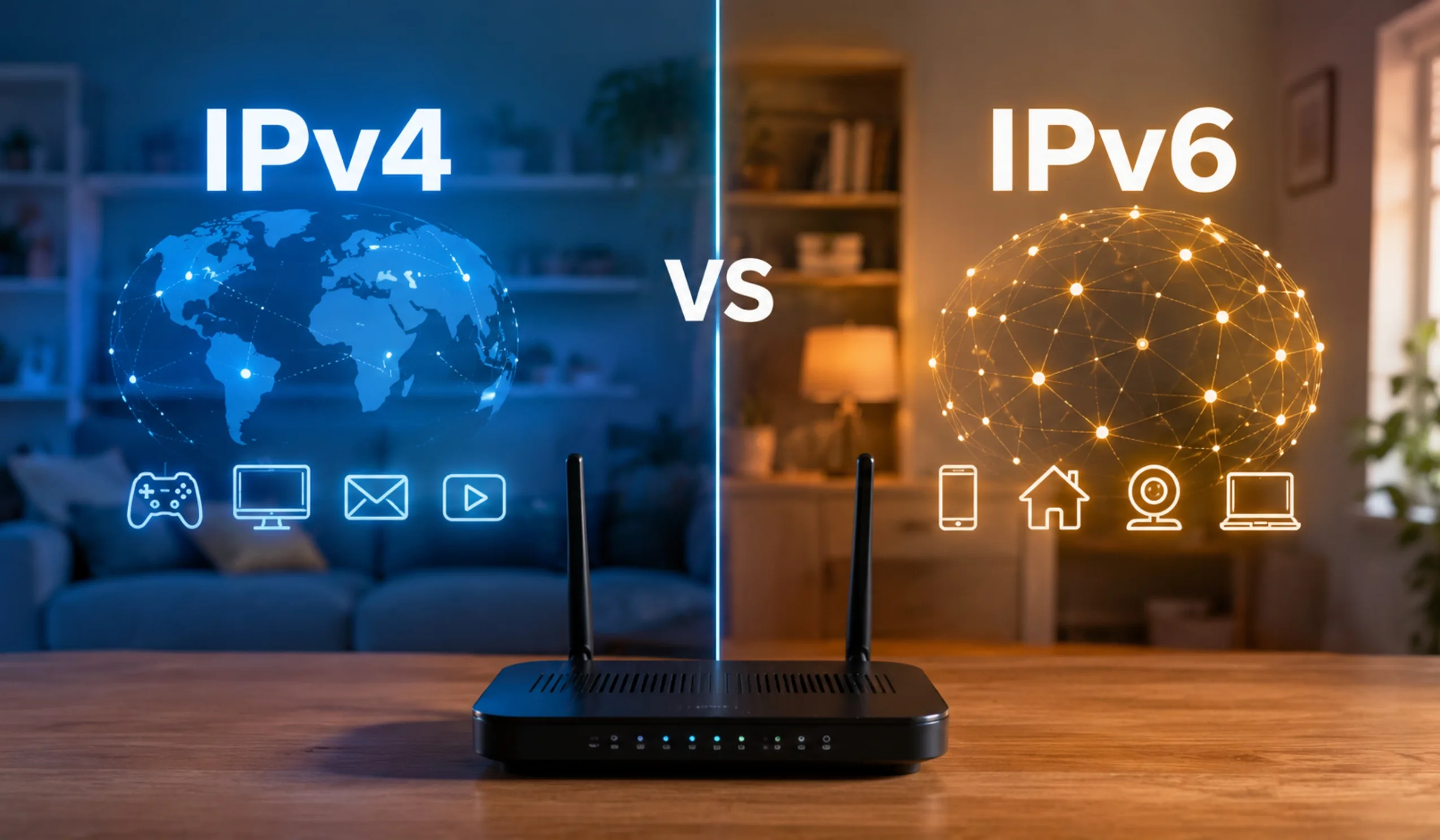
Most routers broadcast two or three networks. The 2.4GHz band reaches farther but is slow and crowded. The 5GHz band is faster and far less congested — use it whenever you’re close enough. If you have a Wi-Fi 6E or Wi-Fi 7 router, the 6GHz band is even better: it’s a brand-new lane with almost no traffic on it, which means lower latency for anything time-sensitive.
A roommate streaming 4K or a phone downloading updates in the background eats into the same bandwidth your game needs. When you’re in a ranked match, pause big downloads and disconnect devices you’re not using. Fewer devices fighting for the connection means a cleaner, lower ping for you.
Most routers from the last few years have a Quality of Service (QoS) setting, sometimes labeled gaming mode. It lets you tell the router, “prioritize this device above everything else.” Once your console or PC is at the front of the line, your game packets get sent first even when the network is busy. Log into your router (usually 192.168.1.1 in a browser) and look under advanced or gaming settings.
Your DNS handles the lookup when you connect to a server, and the default one from your provider isn’t always the quickest. Switching to a faster public DNS like Cloudflare’s 1.1.1.1 or Google’s 8.8.8.8 can trim the time it takes to connect. It won’t transform a bad connection, but it’s free, takes two minutes, and sometimes shaves off those first-handshake delays.
Distance is physics. A server across the ocean will always give you higher ping than one in your region, no matter how good your Wi-Fi is. Most games let you choose a server region manually or show ping next to each option. Always pick the lowest number. Switching from a far server to a local one can cut tens of milliseconds instantly.
A simple restart clears out memory clutter and often nudges the router onto a less crowded channel automatically. If lag keeps coming back, dig into the router settings and manually set a different Wi-Fi channel — apartment dwellers especially benefit, since dozens of nearby networks may be jammed onto the same one.
It’s not always the network — sometimes it’s your own device. Cloud backups, browser tabs, auto-updates, and streaming apps all quietly use bandwidth. Shut them down before you play. On Windows, the Task Manager shows you what’s hogging the connection.
Outdated firmware can cause flaky performance and random spikes. Manufacturers push fixes that improve stability, so check for a firmware update in your router’s settings page. On a PC, update your wireless adapter drivers too — an old driver can quietly bottleneck an otherwise great connection.
If you’ve tried everything and ping is still rough, your router might just be old. The newest standard, Wi-Fi 7, includes a feature called Multi-Link Operation (MLO). Instead of locking onto one band, your device uses two at once — if one gets interference, the other instantly takes over. The result is far steadier ping and fewer spikes, all without a single cable. For wireless gamers in 2026, it’s the closest thing to Ethernet you can get over the air.
One honest caveat: Wi-Fi will rarely beat a wired connection for pure stability. These tricks bring wireless impressively close — and for most players that’s more than enough — but if you’re chasing top-1% competitive performance, Ethernet still wins.
Fixes Ranked by Effort vs. Payoff
Short on time? Start at the top of this list. These give you the biggest improvement for the least hassle.
| Fix | Effort | Ping Impact |
|---|---|---|
| Switch to 5GHz / 6GHz band | Easy | High |
| Move closer to the router | Easy | High |
| Pick the nearest game server | Easy | High |
| Turn on QoS / gaming mode | Medium | Medium–High |
| Change DNS to 1.1.1.1 | Medium | Low–Medium |
| Reboot & change Wi-Fi channel | Medium | Medium |
| Upgrade to Wi-Fi 6E / Wi-Fi 7 | Costs $ | Very High |
When Your Plan or Router Is the Real Problem
Sometimes the issue isn’t your settings at all — it’s the connection coming into your home. If you’re on an old DSL line, a congested cable plan during peak hours, or you keep hitting data slowdowns, no amount of Wi-Fi tweaking will fully fix it. Fiber and modern 5G home internet tend to deliver the lowest, most consistent latency, which is exactly what gamers want.
If you’re not sure whether your current plan is holding you back, our team can check what’s available at your address and point you toward the lowest-latency option for gaming. No pressure, just a quick conversation.
Not sure if your internet is the bottleneck?
Call 855-696-0156Free consultation · Available 7 days a week
And if you’ve decided it’s time to switch to a faster, gaming-friendly connection, here are a few solid options worth comparing:
Frequently Asked Questions
Yes. By using the 5GHz or 6GHz band, sitting close to the router, enabling QoS, and clearing background traffic, most people can get their Wi-Fi ping down into the smooth 20–50 ms range. A modern Wi-Fi 6E or Wi-Fi 7 router closes the gap even further.
Sometimes. A VPN usually adds a little ping because your data takes an extra hop. But if your provider is throttling your traffic or using a poor route to the game server, a VPN with a nearby server can occasionally improve things. It’s worth testing, not assuming.
Random spikes usually come from interference, another device suddenly grabbing bandwidth, or a congested Wi-Fi channel. Try enabling QoS, changing your channel, and disconnecting idle devices. Wi-Fi 7’s Multi-Link Operation is specifically designed to smooth out these spikes.
5GHz, almost always. It’s faster and far less crowded than 2.4GHz, which means lower latency. The only time 2.4GHz wins is when you’re far from the router and need the extra range. If you have a 6GHz band, that’s the best of all.
Not directly — ping is about latency, not speed. But a faster, modern connection (especially fiber or 5G home internet) often runs on better infrastructure with lower, more stable latency, and it handles a busy household without choking. So an upgrade can help, just not for the reason most people think.