
TL;DR — Quick Answer
The fastest Wi-Fi usually comes from a few free tweaks, not a new plan. Update your firmware, put close-up devices on the 5 GHz or 6 GHz band, switch your 2.4 GHz channel to 1, 6, or 11, turn on QoS for video calls and gaming, enable WPA3 security, and move the router out in the open. Most people see a noticeable jump in five to ten minutes.
Here’s something most folks don’t realize: you can be paying for a 500 Mbps plan and still get sluggish Wi-Fi in the back bedroom. The internet coming into your house might be perfectly fine. The problem is what happens after it reaches your router.
Routers ship with safe, generic defaults so they “just work” out of the box for everyone. That’s great for setup day. It’s not great for speed. A handful of settings sit there untouched, quietly holding your network back. The good news? You don’t need to be a network engineer to fix them. Let’s walk through the changes that actually move the needle.
Why Your Settings Matter More Than Your Plan
Think of your internet plan as the size of the pipe coming into your home, and your router as the device that sprays that water around the house. If the router is misconfigured, it doesn’t matter how big the pipe is — you still get a weak trickle in the rooms that need it most.
Interference from neighbors, the wrong frequency band, an outdated security mode, and bad placement all chip away at real-world speed. Stack a few of those problems together and you can lose half your performance without ever seeing a slow speed test at the router itself. The settings below tackle each one.
The Quick Settings Cheat Sheet
Short on time? This is the whole guide in one table. Log into your router (usually by typing 192.168.1.1 or 192.168.0.1 into a browser) and check each setting against this list.
| Setting | What to choose | Why it helps |
|---|---|---|
| Firmware | Always latest | Fixes bugs, adds speed and security patches |
| Band (near router) | 5 GHz or 6 GHz | Faster speeds, far less crowded |
| Band (far / many walls) | 2.4 GHz | Slower but reaches farther through walls |
| 2.4 GHz channel | 1, 6, or 11 | These don’t overlap, so less interference |
| 5 GHz channel | Auto or 36–48 | Cleaner channels for stable speed |
| Channel width | 2.4 GHz: 20 MHz · 5 GHz: 80 MHz | Balances speed against interference |
| Band steering | On | Auto-moves devices to the best band |
| QoS | On (prioritize calls/gaming) | Keeps important traffic smooth |
| Security | WPA3 (or WPA2/WPA3 mix) | Safer, and frees up the network |
Step 1: Update Your Firmware First
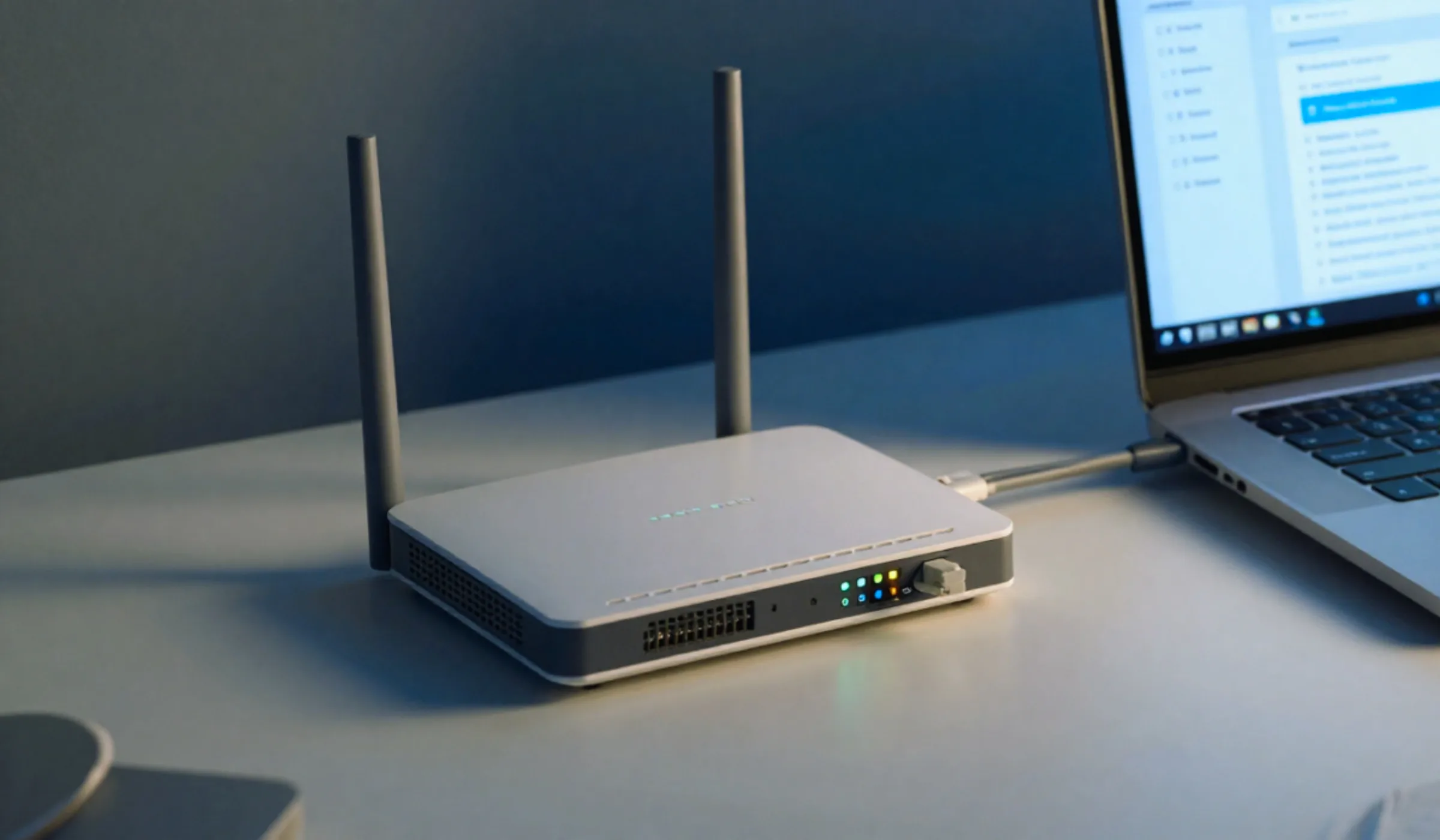
Before you change anything else, check for a firmware update. Firmware is the little operating system that runs your router, and manufacturers push out updates that fix slowdowns, patch security holes, and sometimes unlock better performance. Running old firmware is one of the most common reasons a perfectly good router underperforms.
Look in your router’s admin dashboard under a tab like “Administration,” “System,” or “Firmware Update.” Many newer routers in 2026 offer an auto-update toggle — turn it on so you never have to think about it again. If your router is several years old and updates have stopped, that’s a sign the hardware itself may be due for a refresh.
Step 2: Choose the Right Wi-Fi Band
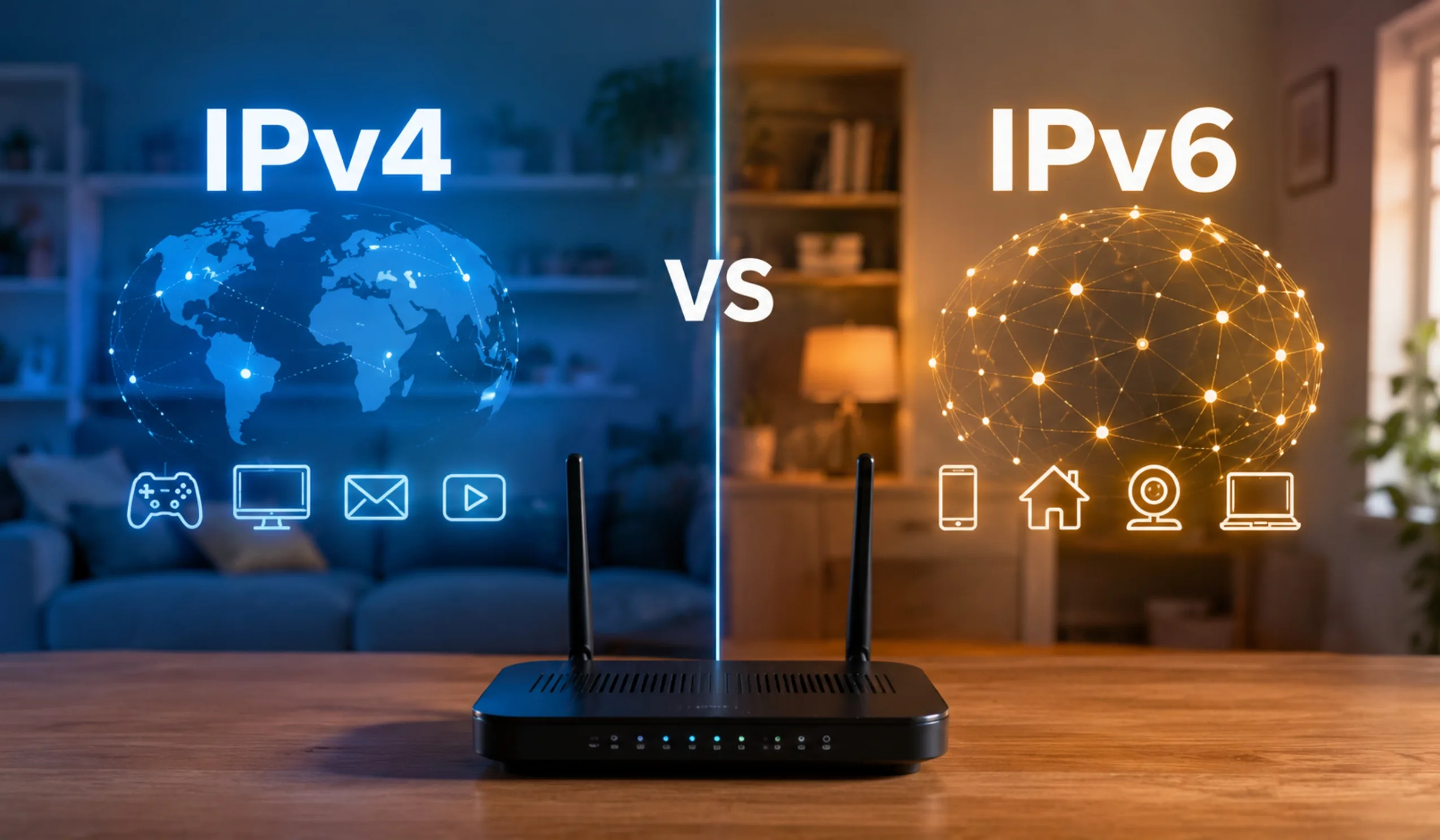
Modern routers broadcast on two or three frequency bands, and picking the right one for each device makes a huge difference. Here’s the simple way to think about it:
Slower, but travels far and punches through walls. Best for devices in distant rooms and smart-home gadgets.
Much faster with shorter range. Perfect for laptops, TVs, and phones used near the router.
On Wi-Fi 6E and Wi-Fi 7 routers. The fastest and least crowded band — ideal for gaming and 4K streaming up close.
If your router lets you name each band separately (like “MyWiFi” and “MyWiFi-5G”), you can manually connect each device to the band that suits it. Streaming on the couch ten feet away? Use 5 GHz or 6 GHz. A doorbell camera at the far end of the house? Leave it on 2.4 GHz.
Step 3: Change Your Wi-Fi Channel
This one is a hidden hero, especially in apartments. Each band is split into channels, and if you and five neighbors are all crammed onto the same channel, your speeds suffer from the digital equivalent of everyone talking at once.
On the 2.4 GHz band, stick to channels 1, 6, or 11 — these are the only three that don’t overlap, so they cause the least interference. On 5 GHz, “Auto” usually works well, but if you want to choose manually, the lower channels (36 to 48) tend to be reliable. A free Wi-Fi analyzer app on your phone can show you which channels your neighbors are crowding so you can pick an empty lane.
A reader in a packed apartment building was stuck on the default 2.4 GHz channel 6 along with eight nearby networks. Switching to channel 1 — which only one neighbor was using — cut their video buffering almost completely. No new hardware, no upgrade, just one dropdown menu.
Step 4: Set the Right Channel Width
Channel width controls how much data your Wi-Fi can carry at once. Wider sounds better, but it’s not always the right call. On a crowded 2.4 GHz band, a wide 40 MHz channel actually causes more interference, so 20 MHz is the safer, faster real-world choice there. On 5 GHz, you have more room to breathe, so 80 MHz is a good sweet spot for most homes. Save the huge 160 MHz (and the 320 MHz width on Wi-Fi 7) for clean 6 GHz connections where there’s almost no competition.
Step 5: Turn On Band Steering
Band steering is a smart feature that automatically nudges each device onto the best available band as it moves around your house. Instead of your phone clinging to a weak 5 GHz signal in the garage, the router quietly hands it over to 2.4 GHz where it works better. Flip this on and your network mostly manages itself. A few older devices occasionally get confused by it — if something keeps dropping, you can turn it off and assign bands manually instead.
Step 6: Use QoS to Prioritize What Matters
Quality of Service, or QoS, is one of the most underused settings on any router. By default, every device fights for bandwidth equally — so a big background download on one laptop can tank your video call on another. QoS lets you tell the router what to prioritize.
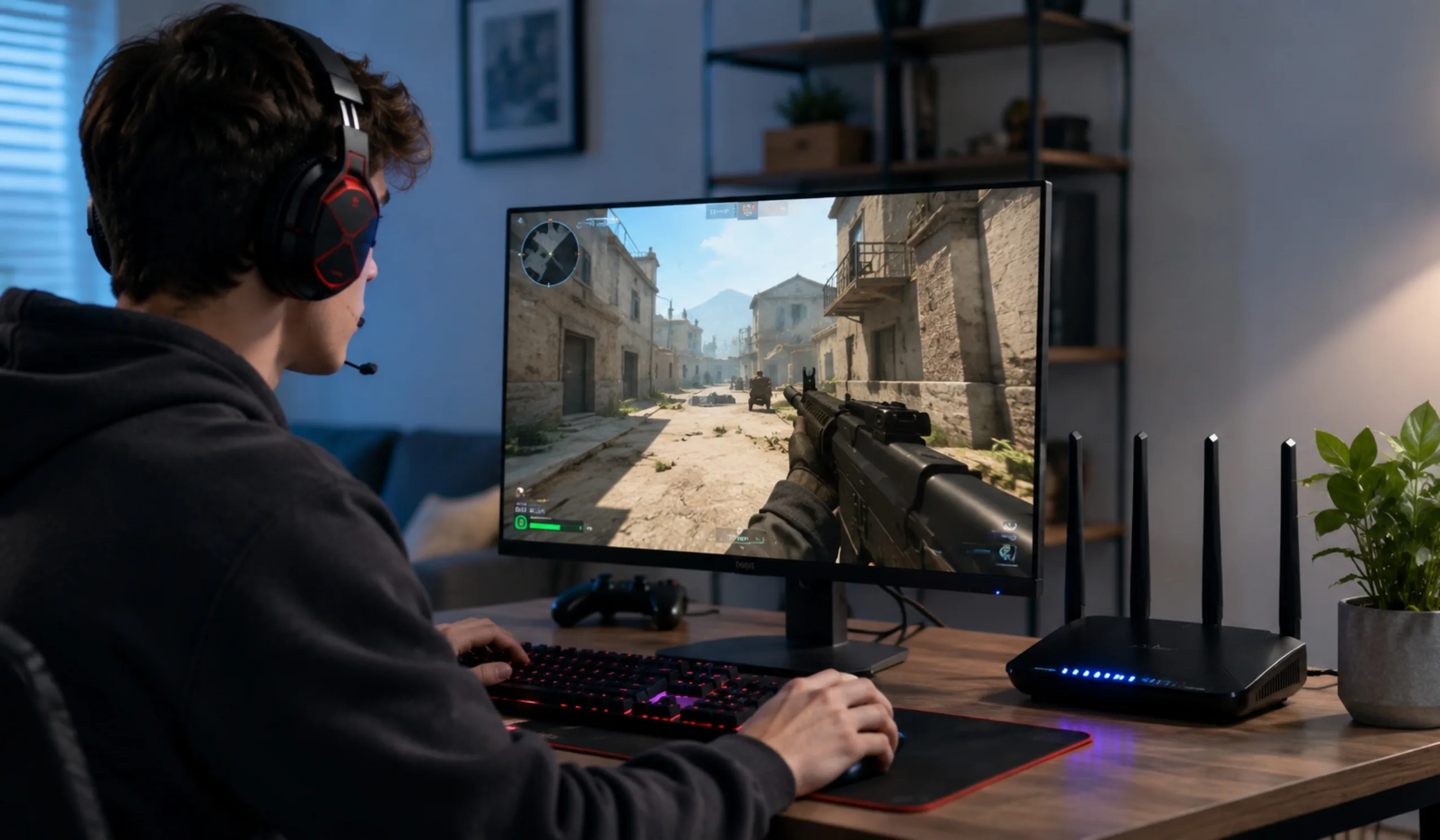
Set video calls, gaming, or your work laptop near the top, and the router will protect that traffic even when the network gets busy. If you’ve ever had Zoom freeze the moment someone started a download, QoS is your fix. Gamers especially benefit, since it helps tame the lag spikes that come from a congested connection.
Step 7: Switch to WPA3 Security
Security and speed are connected in a way most people miss. An open or poorly secured network invites freeloaders, and every extra device leeching your Wi-Fi steals bandwidth from you. WPA3 is the current encryption standard, and it’s both safer and tougher to crack than the older WPA2. According to the Wi-Fi Alliance, WPA3 brings stronger protections that defend against the password-guessing attacks WPA2 couldn’t fully block.
In your router’s wireless security settings, choose WPA3 if all your devices support it, or WPA2/WPA3 mixed mode if you still have a few older gadgets that need WPA2. Either way, pick a long, unique password — and change it from whatever was printed on the box.
Step 8: Fix Your Router Placement
You can dial in every setting perfectly and still get weak Wi-Fi if the router is hidden in a closet behind the TV. Wi-Fi spreads outward like a bubble, so a router shoved in a corner wastes half its signal on the outside world. A few placement rules go a long way:
Place it in the middle of your home, not against an outside wall.
A shelf or table beats the floor. Signal travels down better than up.
Out of cabinets and away from thick walls, metal, and mirrors.
Keep it clear of microwaves, baby monitors, and cordless phones.
When Settings Aren’t Enough
Let’s be honest about the limits here. Tweaking settings can recover a lot of lost speed, but it can’t create speed that was never there. If your home is large, has thick plaster or brick walls, or spreads across multiple floors, a single router may simply not reach everywhere — no matter how it’s configured.
In those cases, a mesh Wi-Fi system usually beats a basic range extender. Mesh nodes work together to blanket your whole home in one seamless network, while extenders just rebroadcast a copy of the signal and often cut speed in half. And if your router is more than four or five years old and stuck on Wi-Fi 5, upgrading to a Wi-Fi 7 model can be worth it for a busy household with lots of devices.
It’s also worth confirming your plan actually fits your needs. The FCC’s household broadband guide breaks down how much speed different activities really require, so you can tell whether the bottleneck is your router or the plan itself.
Not sure if it’s your settings or your plan?
Call 855-696-0156Free consultation · Available 7 days a week
Need a Faster Connection? Talk to a Real Person
If you’ve tuned everything and your connection still can’t keep up, the issue might be the plan, not the hardware. Here are a few providers worth comparing, with direct lines if you want to check availability and pricing in your area.
Frequently Asked Questions
Often, yes. Switching to a less crowded channel, using the right band, and turning on QoS can recover speed you’re already paying for. It won’t push you past your plan’s maximum, but it can fix the gap between what you’re paying for and what you actually feel.
Not always. The 5 GHz and 6 GHz bands are faster but don’t travel as far. Use them for devices close to the router, and keep distant gadgets or smart-home devices on 2.4 GHz so they stay connected through walls.
Download a free Wi-Fi analyzer app on your phone. It shows which channels nearby networks are using, so you can pick an empty one. On 2.4 GHz, stick to channels 1, 6, or 11 since those don’t overlap.
Yes. WPA3 is more secure than WPA2 and helps keep unwanted users off your network, which protects your speed too. If you have older devices, use WPA2/WPA3 mixed mode so everything still connects.
Check every couple of months, or simply turn on auto-update if your router supports it. Updates fix bugs and security flaws and sometimes improve performance, so there’s rarely a reason to skip them.
Start with the settings — they’re free and often enough. But if your router is more than four or five years old, only supports Wi-Fi 5, or can’t cover your whole home, upgrading to a Wi-Fi 7 model or a mesh system may be the better long-term fix.