

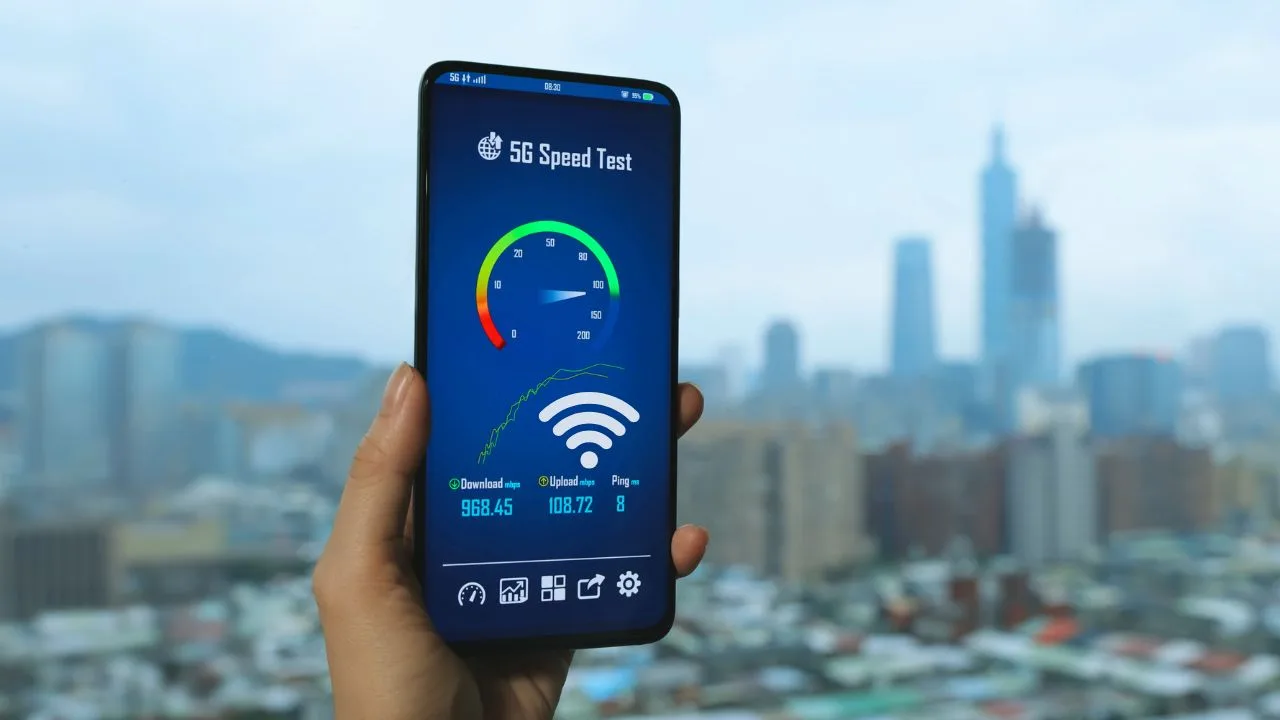
TL;DR:
For accurate home speed results, quiet your network (pause downloads, turn off VPN), run three tests and use the median, and compare Ethernet (baseline) vs Wi-Fi on 2.4/5/6 GHz. Check more than megabits—watch latency, jitter, and packet loss. If wired speeds match your plan but Wi-Fi is weak, fix placement, channels, firmware, or cables; if wired is slow all day, call your provider with logged results.
Your Wi-Fi says “300 Mbps,” yet Netflix buffers and your video call freezes. Annoying, right?
Good news: you can test your internet speed at home—properly—so you know what’s slow, what’s fine, and what to fix next.
Here’s the thing: a “quick tap” speed test rarely shows the full story. With a tiny bit of prep and a simple plan, you’ll get results you can trust—and act on.
Set up a clean test
If you only change one thing today, make it this: isolate the connection. A speed test is a race. Extra apps and devices are like runners jumping on the track mid-lap.
1–2 minutes of prep:
Pause big downloads and cloud backups (Google Drive, OneDrive, iCloud Photos).
Close streaming tabs, torrents, and game launchers.
If you use a VPN, turn it off for testing (you can test with it on later).
Test on one device at a time; ask others to pause heavy use for a moment.
Reboot the modem/router if you haven’t in a while (helps stale connections).
Here’s the thing: tiny distractions like a background Windows update can drag your score down by a lot. A clean slate gives you a fair read.
The test isn’t just about download
Most folks tap “Go” and look at one number. That’s only part of the story. A solid test covers five things:
Download (streaming, browsing)
Upload (video calls, backups, posting files)
Latency/ping (how quick a click becomes action)
Jitter (how steady that ping is; video calls hate wobble)
Bufferbloat (does your connection lag badly while busy?)
If your download looks fine but calls break up, jitter or bufferbloat might be the real culprit. Let me explain how to catch that.

Prep first, test once—then trust it
Think of this like clearing the kitchen counter before you cook. Small steps matter.
Pause the noise. Stop big downloads, cloud backups, streaming TVs, and game updates on the same network.
Kill background apps. On your phone: close other apps; turn off cloud photo sync for a bit. On your laptop: pause OneDrive/Google Drive/Dropbox.
Disable VPNs and proxies. They add overhead and can mask the true line speed.
Pick the right Wi-Fi. Use the 5 GHz band if available (faster, shorter range). If you’re far from the router, 2.4 GHz may be steadier—just note it’s slower.
Stand near the router. Walls, microwaves, and neighbors’ routers add interference.
Reboot the router if it’s been weeks. Quick refresh; wait two minutes.
For the gold-standard test: use Ethernet once (laptop + cable). That shows the maximum your line can deliver, without Wi-Fi limits.
Small hint: run tests with your device on charge. Some phones throttle when battery is low.
The exact testing sequence (clean and repeatable)
Choose two speed test tools. Variety helps:
Start with Ethernet (if possible).
Move to Wi-Fi, same room as router.
Test where you actually use the internet.
Try one peak hour and one quiet hour.
Yes, it sounds like a lot. It takes ten minutes. It saves hours of guesswork.
Reading the numbers without squinting
Download (Mbps): Comfortably stream 4K? Aim for 25+ per active stream; families need more.
Upload (Mbps): Smooth video calls want 5–10+. Cloud backups love even more.
Latency (ms): Under 30 ms feels snappy; 30–60 ms is fine; 60+ adds lag, especially for gaming and calls.
Jitter (ms): Lower is better; under 10 ms keeps calls steady.
Bufferbloat (letter grade or ms under load): If your ping explodes while testing “under load,” web pages feel sticky during downloads. A or B is fine; C or worse means your router or plan needs attention.
A quick size note: ISPs show Mbps (megabits per second). File managers show MB/s (megabytes per second). Divide Mbps by 8 to get MB/s. So 80 Mbps ≈ 10 MB/s.
Why multiple servers and multiple runs?
Internet paths change. A server across town can be jammed while one 200 km away is wide open. Doing a few runs smooths out random spikes. Switching servers shows whether the bottleneck is your provider, the test node, or just that one path.
Tiny comparison that helps you choose a tester
| Tool | Handy strengths | Nice use case |
|---|---|---|
| Speedtest by Ookla | Server choice, shareable history, apps for phone/TV | General testing + provider evidence |
| Fast.com | Simple, quick, extra focus on streamed video reality | Netflix watchers, quick checks |
| Cloudflare Speed Test | Jitter detail, routing hints | Call quality hunters, curious tinkerers |
(Use any two. Consistency beats brand.)
Common gotchas that skew results
Old phones and laptops. A budget phone from years ago may top out at 150–300 Mbps on Wi-Fi even if your plan is 500+. That’s device, not provider.
Crowded Wi-Fi channel. Neighbors’ routers overlap on 2.4 GHz. A router channel change can help.
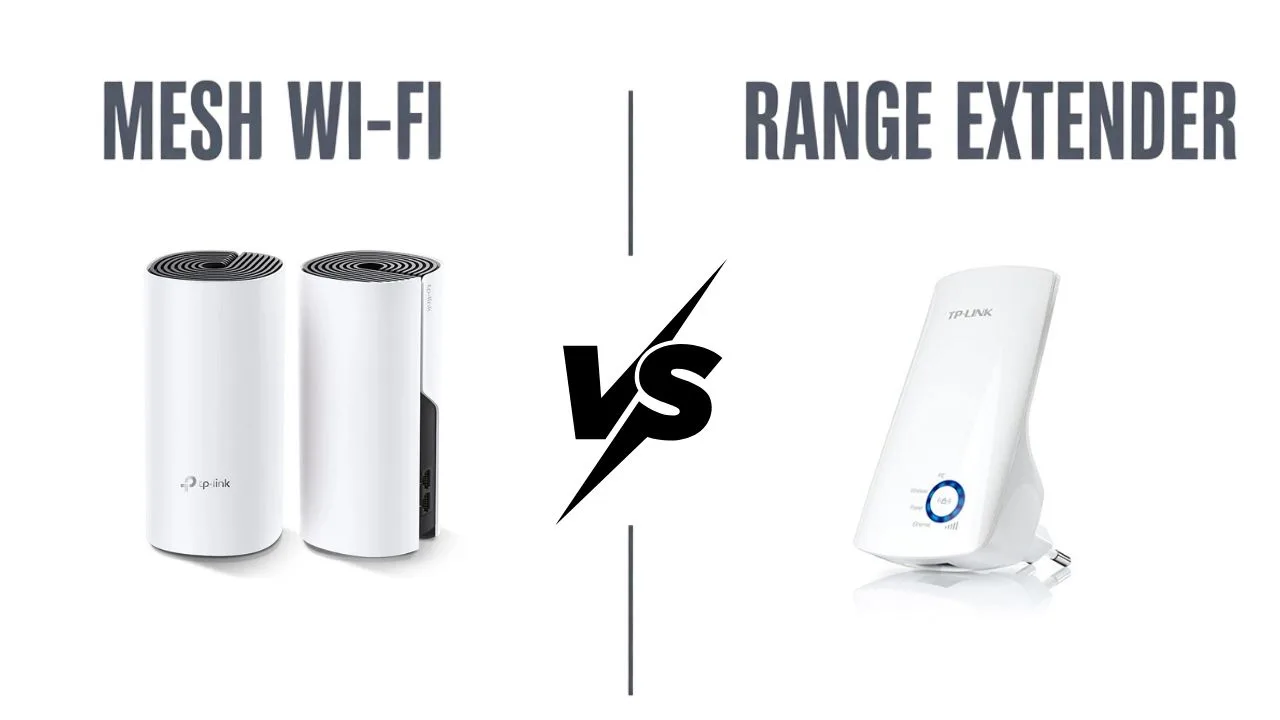
Mesh placement. If a mesh node sits far from the main router, your phone measures the weak link. Move nodes halfway, not at the edge.
Browser quirks. Try another browser if numbers look weird.
ISP speed boosts. Some plans burst briefly, then settle. Look at the steady average, not the instant peak.
What to do with the results (quick fixes that actually move the needle)
Great Ethernet, poor Wi-Fi? Your router or placement is the issue. Raise it, center it, and clear obstacles. Consider adding a mesh node for distant rooms.
High bufferbloat under load? Turn on QoS or Smart Queue Management in the router so big downloads don’t choke everything else.
Upload is weak but download is fine? That’s often the plan tier. If video calls are central to your day, a plan with better upload helps more than raw download.
Even Ethernet is low versus your plan? Screenshot results (date/time, server). Contact support with those screenshots. It speeds up fixes.
Only peak hours are bad? That points to local congestion. Providers can sometimes move you to a less busy node; asking with proof helps.
What is a good Wi-Fi speed at home?
| Speed (Download) | Category | Smooth for… | Notes |
|---|---|---|---|
| 5–20 Mbps | Better (but still meh) | 1080p streaming on one device | Light browsing + 1 stream; video calls may wobble |
| 20–40 Mbps | Solid | 4K streaming on one device; casual HD gaming | Fine for 1–2 people if uploads aren’t busy |
| 40–100 Mbps | Good | Multiple HD streams; one 4K stream; online gaming | Comfortable for small families |
| 100–300+ Mbps | Fast | Several 4K streams; big downloads; multiplayer gaming | Best for busy homes and smart gadgets galore |
Rule of thumb: aim for ~25 Mbps down per active 4K stream and ~10–20 Mbps up per active video-caller.
The pocket checklist you can reuse
Pause big downloads/streams on the network
Close background apps; disable VPN
Use 5 GHz near the router; 2.4 GHz only for long range
Test Ethernet once for the “true line” number
Run 3 tests on one server, 2 on another
Repeat at peak and quiet hours
Record download, upload, ping, jitter, and bufferbloat
Screenshot the best evidence
Pin that to Notes. You’ll thank yourself later.
A small tangent that still matters, your plan vs your habits
If you mostly scroll, watch HD, and do the odd call, a reliable 100–200 Mbps line with decent upload can feel silky. If your home runs a dozen gadgets, two 4K streams, and a daily cloud backup, speed is only part of comfort—steady latency and sane Wi-Fi design matter more. Funny how we chase big numbers and still get choppy calls, right? That’s jitter and bufferbloat tapping you on the shoulder.
Recap
Accurate testing is a routine, not a guess. Clear the noise, run repeatable tests on two tools, capture Ethernet and Wi-Fi, and read the full set of numbers—download, upload, latency, jitter, and bufferbloat. From there, fixes are straightforward: smarter Wi-Fi placement, QoS for heavy homes, or a plan that matches how you actually live online.
Honestly, once you’ve done it once, you won’t go back to one-tap, shrug-and-pray testing. Ready to run your clean test and see what your line can really do?
Frequently Asked Questions
Use a laptop connected to your router with an Ethernet cable, disable VPNs, pause downloads/streams, pick a nearby Speedtest/Ookla server (or your ISP’s test), and run three back-to-back tests. Average the results. This removes Wi-Fi and background-app noise so you see the real line speed.
First, confirm your plan’s advertised speed in your account. Then test on Ethernet with a modern device, VPN off, and nothing else using the web. Run multiple tests on different servers and at different times of day; compare the averages to your plan.
Find your “ceiling” on Ethernet at the router—this is your baseline. Next, test Wi-Fi in a few rooms (near the router, hallway, far bedroom) on 5 GHz or 6 GHz. The room with the highest, most stable Wi-Fi results shows where your setup performs best; big drops point to placement or interference issues.
Use a consistent method: same device, same server list, and similar times of day. Start on Ethernet to know the line’s max, then walk around with your phone or laptop and test on Wi-Fi in each spot. Note download, upload, latency, and jitter—those four numbers tell the full story.
For most households, 100–300 Mbps download and 10–25 Mbps upload feels smooth for streaming, video calls, and gaming on several devices. Larger families or heavy 4K streaming benefit from 500 Mbps+. For video calls, steady upload (10–20 Mbps per active caller) and low jitter matter as much as raw download.
They’re reliable when you control the variables: Ethernet over Wi-Fi, nearby servers, no VPN, and no background traffic. Results still vary with time of day and server load, so take three readings and average them. If different tools disagree, trust the Ethernet average and retest later to confirm.