

TL;DR:
Budget ~25 Mbps per 4K stream (35–50 Mbps for comfort) and add the same for each simultaneous stream. Most hiccups come from Wi-Fi, not your plan—use 5 GHz/Wi-Fi 6 or Ethernet, place the router well, and turn on QoS/SQM to control bufferbloat. Aim for 15–20+ Mbps upload, watch data usage, and pick a simple tier: 100 Mbps (solo/duo), 200–300 Mbps (families), 500+ Mbps (many devices or heavy downloads).
Ever hit play on a 4K movie and the picture turns soft or starts buffering right at the best scene? Annoying. The fix is almost always the same—give your stream enough bandwidth and a little headroom.
Here’s the thing: 4K isn’t scary or expensive to support. You just need a clean, steady pipe and the right Wi-Fi setup at home. Let me explain.
We’ll map real numbers, simple rules, and a couple of easy checks you can do tonight. No jargon maze—just what actually works.
What 4K really needs
4K video is mostly about bitrate—the amount of data the app pulls each second. Services vary, but a safe rule is 15–25 Mbps per 4K stream. HDR can push the rate a bit higher. That’s the floor. Real life adds bumps: background updates, someone scrolling TikTok, a smart TV pulling app data, and minor network noise.
So we plan like this:
Minimum for one 4K stream: 25 Mbps down
Comfortable for one 4K stream: 35–50 Mbps down
Add 25 Mbps for each extra 4K stream you want at the same time
These aren’t bragging rights; they’re breathing room. A stream that sits at 17 Mbps will still play better on a 50 Mbps line than on a 20 Mbps line because life happens—packets get delayed, Wi-Fi hiccups, and your console decides to download an update mid-movie.
One stream vs a whole household
If it’s just you and a TV, you’re golden with 50 Mbps. But add kids, roommates, or game consoles, and you’ll want to plan for concurrency.
Think in stacks, not averages. If two people watch 4K while another runs a video call, you should budget for all three happening at once. Use this quick table as a guide:
| Scenario | Minimum download | Comfortable download |
|---|---|---|
| Solo viewer, 1× 4K stream | 25 Mbps | 50 Mbps |
| Couple, 2× 4K streams | 50 Mbps | 100 Mbps |
| Family mix, 2× 4K + browsing | 75 Mbps | 150 Mbps |
| Busy household, 3× 4K + gaming + calls | 100 Mbps | 200–300 Mbps |
If your home uses cloud backups, big game downloads, or frequent screen-sharing, tilt to the right-hand column. Honestly, it’s better to have quiet overhead than to argue with a buffer wheel.

The short answer first
Bare minimum for one 4K stream: 15–20 Mbps (it might work, but expect dips)
Comfortable target for one 4K stream: 25 Mbps steady
Rock-solid headroom for one 4K HDR stream with action: 30–35 Mbps
Add 5–10 Mbps for general household overhead (phones, smart devices, cloud backups)
Multiply by concurrent 4K streams
If you want the quick rule: 25 Mbps per active 4K stream plus 10–20 Mbps of buffer for everything else happening in your home.
Why different apps give different results
Not all services compress video the same way. Some push modern codecs, some stick to older ones for compatibility.
Netflix: 4K often lands around 15–25 Mbps for films; fast scenes can jump.
Disney+: Frequently targets the higher side for 4K HDR; plan on 25 Mbps.
Prime Video: Similar range; quality varies by title; 20–25 Mbps is typical.
YouTube: 4K can be 15–30+ Mbps, depending on HDR and frame rate (60 fps needs more).
Apple TV+: Known for very clean 4K HDR; play it safe with 25–30 Mbps.
These aren’t rigid numbers, just realistic ranges from real-world viewing. The point is simple: if you aim for 25–30 Mbps per 4K stream, you’re safe almost everywhere.
HDR, codecs, and why two identical TVs behave differently
Sometimes one room streams like a dream and the other doesn’t. A few reasons:
HDR variants (HDR10, Dolby Vision) can nudge bitrates up. Your service may choose higher quality on one app than another.
Codecs (HEVC, AV1, VP9) compress differently. Newer codecs like AV1 can keep quality high at lower bitrates—but only if both the app and device support them.
Apps and caches get cranky. Restart the streaming app or the TV if the quality gets stuck. It’s silly but it works.
Bottom line: if a specific app looks soft, try the same title on a different app or device. If that’s sharp, the first app just needs a refresh (or better support for the title).
A practical table you can actually use
| Streaming case | Safe bandwidth per stream | Notes you’ll care about |
|---|---|---|
| 4K SDR movie (24/30 fps) | 20–25 Mbps | Calm scenes can be lower; action scenes spike. |
| 4K HDR movie (Dolby Vision/HDR10) | 25–30 Mbps | HDR adds overhead; keep extra buffer. |
| 4K sports (50/60 fps) | 28–35 Mbps | Fast motion needs more bits to stay sharp. |
| 4K YouTube creator videos | 20–30+ Mbps | Encoding quality varies; 60 fps pushes higher. |
| 4K on mobile/tablet | 15–25 Mbps | Smaller screen can mask artifacts; still allow spikes. |
| Two simultaneous 4K streams | 50–60 Mbps | Plus 10–20 Mbps household buffer. |
| 4K + gaming download in background | 70–100+ Mbps | Downloads can saturate the line; throttle or pause them. |
Downloads aren’t everything
Most people look only at download speed. Sensible, but upload speed and latency can make or break the experience:
Upload: Video calls, cloud photos, and smart-home cameras chew upload. If your plan has tiny upload (say 5–10 Mbps), those devices can choke the line and make your stream stutter. For smooth evenings, aim for at least 15–20 Mbps upload in a modern home.
Latency and jitter: 4K isn’t as latency-sensitive as gaming, but big spikes (bufferbloat) during downloads can still pause your movie. If web pages feel sluggish when someone is downloading, that’s bufferbloat. A router with SQM/QoS can help.
Quick check: Run a speed test while someone starts a big download. If your ping skyrockets, you’ll benefit from a better router or QoS settings.

Your Wi-Fi matters as much as your plan
Plenty of 4K troubles come from Wi-Fi, not the ISP. A few fixes go a long way:
1) Use 5 GHz or Wi-Fi 6/6E where possible
Older 2.4 GHz is crowded and slow. If your TV supports Wi-Fi 6, connect it to that SSID. If the TV is far from the router, consider a wired Ethernet run or a powerline adapter as a quick win.
2) Place your router like a lamp, not a shoebox
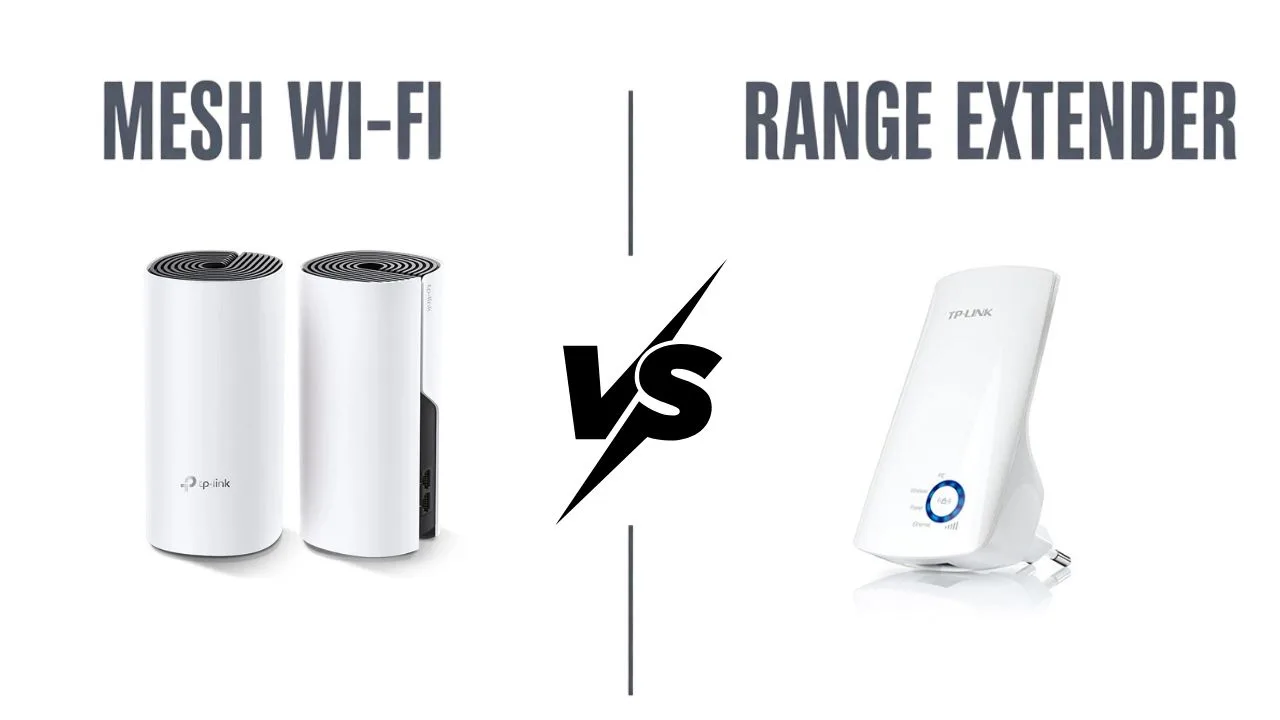
Open air, central spot, higher shelf. Walls and metal appliances gobble signal. If your home is large or multi-story, add a mesh node near the TV area.
3) Separate heavy devices
If a console or PC often downloads huge files, give it Ethernet or a different mesh node so it doesn’t trample the TV’s lane.
4) Mind channel congestion
Routers can pick better channels automatically; if yours allows manual control, scan for a cleaner channel on 5 GHz. Small tweak, big payoff.
A simple testing routine before movie night
You don’t need lab gear. Do this once and you’ll know where you stand.
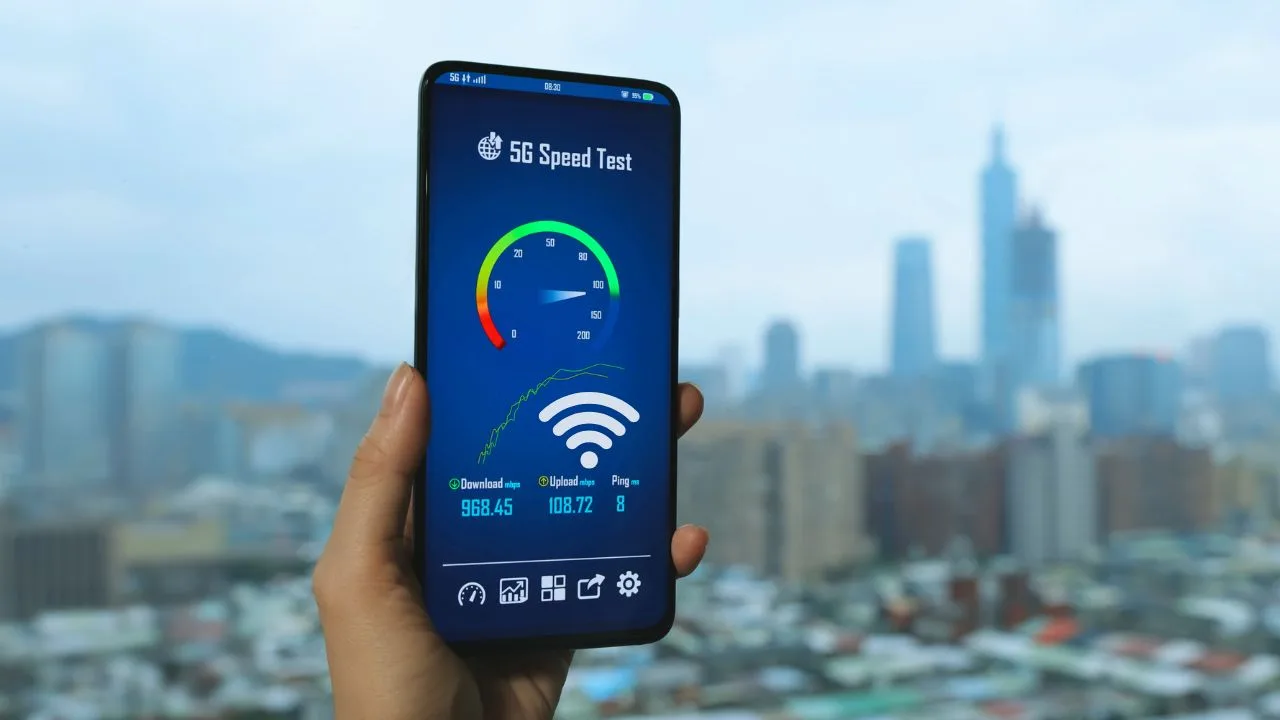
- Baseline speed test near the router on a phone or laptop. Note download, upload, and ping.
- TV-side test on the device you actually watch (many TVs or streaming boxes have a built-in test or use a browser). If that number is much lower than your baseline, it’s a Wi-Fi placement issue.
- Real-world trial start a 4K title and let it play. While it runs, someone else opens a cloud backup or game update. If you see buffering, try enabling QoS/SQM on the router and repeat.
- One-by-one isolate pause the backup, then the download, then switch the TV to 5 GHz or Ethernet. When buffering disappears, you’ve found the bottleneck.
If you’re close to your limits, bump your plan one tier. It’s the least stressful fix.
Data caps and how to keep 4K under control
4K is gorgeous—and hungry. A single hour can eat several gigabytes. If your plan has a data cap or slows after a threshold, use these knobs:
Set streaming quality to Auto or High only when watching; drop to Medium on casual background TV.
Download movies for offline viewing on mobile or tablet while on a fast Wi-Fi connection, then cast locally.
Schedule big downloads (game updates, cloud backups) for late night when no one’s watching.
A quick settings sweep once can save a lot of meter anxiety later.
What plan should you actually buy?
Let’s keep it easy:
Apartment or small home, 1–2 people: 100 Mbps down / 20 Mbps up is plenty, with a modern Wi-Fi 6 router.
Family home, 3–4 active users, 1–2 4K streams: 200–300 Mbps down / 20–30 Mbps up, mesh Wi-Fi if you have dead zones.
Big household, lots of devices, 3+ 4K streams plus gaming: 500 Mbps down or higher, 30–50 Mbps up, solid mesh and Ethernet backhaul where possible.
If you already have fiber available, that’s a win—symmetrical speeds and low latency make everything feel snappier.
Recap
You don’t need a monster connection to enjoy sharp, clean 4K. Plan 25 Mbps per stream, add cushion for real life, and make Wi-Fi work for you—prefer 5 GHz or a cable, place the router well, and tame background traffic with QoS. Do the quick tests once, and your movie nights just… work.
One last question to leave you with: how many people in your place actually watch at the same time? If the answer is “usually two,” bump your plan and Wi-Fi for two—and relax for the next year.
Frequently Asked Questions
Yes—for a single 4K stream. Most platforms need ~15–25 Mbps per 4K stream, so 100 Mbps gives you room for one stream plus regular browsing. If two people watch 4K at the same time, you may feel tight without good Wi-Fi and QoS.
Plan on 25 Mbps per 4K stream as a baseline and 35–50 Mbps for comfort. Add that again for each additional 4K stream running at the same time.
Easily. 300 Mbps can handle multiple 4K streams plus background traffic. The real limiter is often Wi-Fi quality and congestion, not the raw internet plan.
Yes—500 Mbps is more than enough for several concurrent 4K streams. It also helps during big downloads or game updates so your movie doesn’t buffer.
It uses more bandwidth than HD because 4K video carries more data. Expect several GB per hour depending on the app and quality settings; a strong 5 GHz or Wi-Fi 6 connection helps keep it smooth.
For most homes, 500 Mbps is plenty—even with multiple 4K streams. Go 1000 Mbps if you have many heavy users, big frequent downloads, or you want extra headroom for work, gaming, and future devices.