
TL;DR:
Buffering happens when your TV can’t download data fast enough to keep up with what you’re watching. The fix is usually one (or a combination) of these: test your internet speed, restart your router, switch to a wired Ethernet connection, lower your streaming quality, clear your app cache, move your router closer, switch to the 5 GHz Wi-Fi band, update your device firmware, or upgrade your router/internet plan. Most buffering issues can be resolved in under 10 minutes without spending a dime.
Test your internet speed first
Restart your router (30-second power cycle)
Use a wired Ethernet cable instead of Wi-Fi
Lower streaming quality to 720p or 1080p
Clear app cache & restart your streaming device
Move your router to a central location
Switch from 2.4 GHz to 5 GHz Wi-Fi band
Update firmware on your TV and router
Upgrade your router or internet plan
Why Does Your TV Keep Buffering?
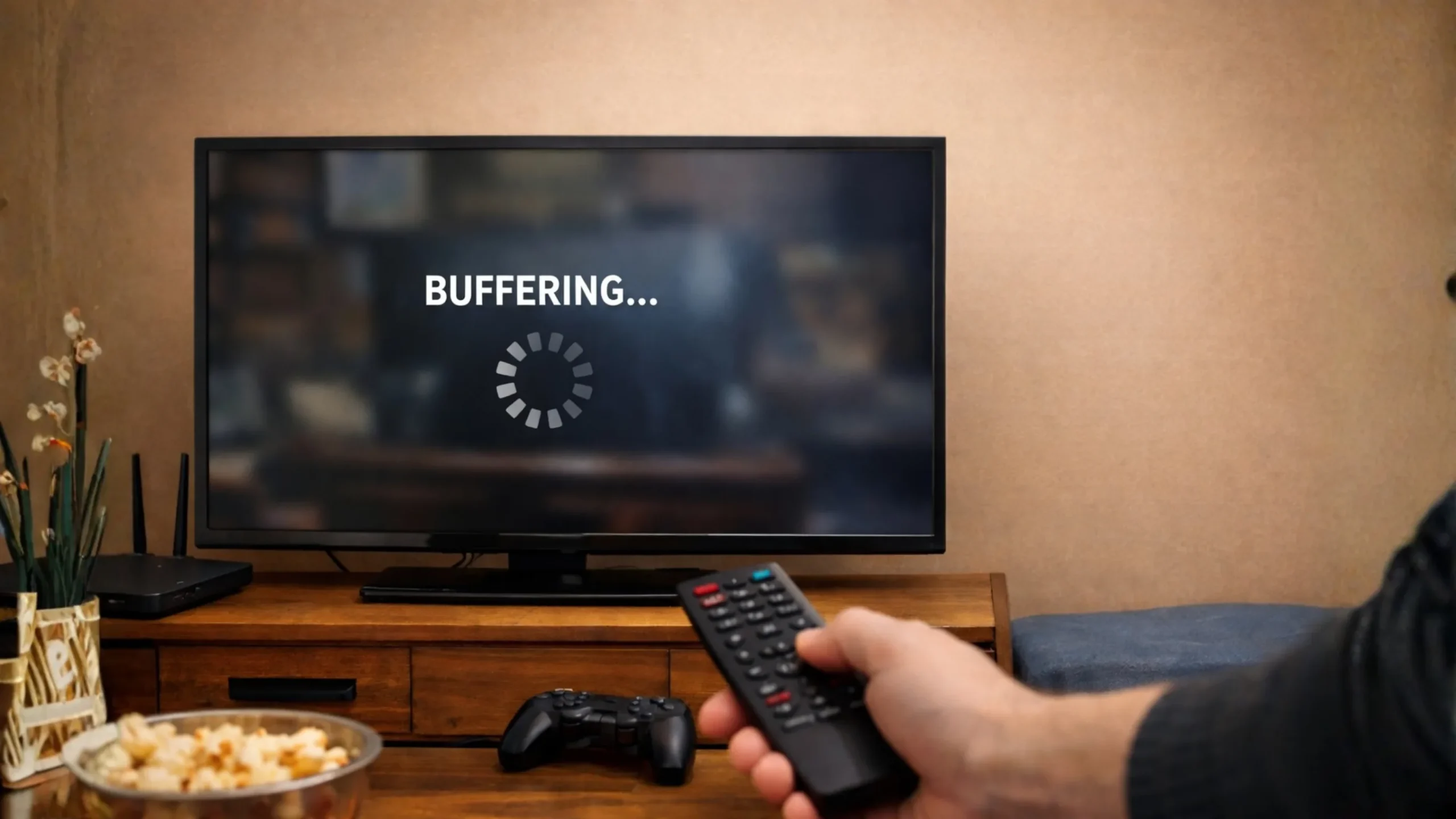
Let’s clear up a common misconception first. That spinning circle on your screen doesn’t mean your stream is “loading.” It actually means buffering has stopped or fallen behind. Your TV is waiting for enough data to arrive before it can resume playback. When everything’s working properly, your device is constantly downloading a few seconds ahead of what you’re watching — that’s what buffering is supposed to do. When it fails, you get the dreaded pause.
So what causes it to fail? Almost always, it comes down to one of four things: your internet speed can’t keep up with the video quality you’ve selected, your Wi-Fi signal is too weak or congested, your streaming device is running low on memory or processing power, or there’s a temporary glitch somewhere in the chain between the streaming server and your screen.
The good news? You don’t need to be a tech expert to fix this. Most buffering problems can be solved in a few minutes with the right adjustment. Let’s start with what your streaming apps actually need from your internet connection.
How Much Speed Do You Actually Need?
Different streaming qualities demand different amounts of bandwidth. Here’s the real-world minimum for a single device — remember to multiply if multiple people in your household are streaming at the same time.
3
MbpsBasic quality, mobile screens
5
MbpsGood for tablets & laptops
10
MbpsStandard for most TVs
25
MbpsPremium quality, big screens
35+
MbpsCinematic, highest bitrate
| Platform | SD | HD | 4K / UHD | Notes |
|---|---|---|---|---|
| Netflix | 3 Mbps | 5 Mbps | 15–25 Mbps | Premium plan required for 4K |
| Disney+ | — | 5 Mbps | 25 Mbps | 4K included on all plans |
| Amazon Prime | 1 Mbps | 5 Mbps | 25 Mbps | 4K included with Prime |
| YouTube TV | 3 Mbps | 7 Mbps | 25 Mbps | Live TV needs extra stability |
| Hulu | 1.5 Mbps | 3 Mbps | 16 Mbps | 8 Mbps for live content |
| Apple TV+ | — | 8 Mbps | 25+ Mbps | Higher bitrates than competitors |
| HBO Max | — | 5 Mbps | 50 Mbps | Highest 4K requirement |
| Peacock | 3 Mbps | 8 Mbps | 25 Mbps | Low latency needed for live events |
Take whatever speed the platform recommends and add about 30% as a buffer for real-world conditions. If Netflix says 25 Mbps for 4K, aim for at least 35 Mbps. For a household with multiple people streaming simultaneously, 100 Mbps is a solid baseline. Run a speed test at speedtest.net or fast.com (built by Netflix) to check what you’re actually getting.
The 9 Fixes: Step-by-Step
Arranged from quickest/easiest to more involved. Start at the top and work your way down — most people find their solution within the first four fixes.
Before changing anything, find out what you’re working with. Go to fast.com (Netflix’s own speed test) or speedtest.net on any device connected to the same network as your TV. If your result is below 5 Mbps, that’s your problem right there — you don’t have enough bandwidth for even basic HD streaming.
Compare your result to what you’re paying for. If your plan promises 200 Mbps but you’re only getting 30, something’s wrong between your ISP and your device. If the speed test shows healthy numbers (50+ Mbps) but you’re still buffering, the issue is likely Wi-Fi signal strength, device performance, or app-related — and the next fixes will help.
“Have you tried turning it off and on again?” might sound like a cliché, but there’s a real reason this works. Routers build up memory leaks, stale DNS caches, and overloaded connection tables over time. A power cycle clears all of that and forces the router to re-establish a clean connection with your ISP.
The key is doing it properly: unplug the power cable (don’t just press the button), wait a full 30 seconds, then plug it back in. That 30-second pause ensures the capacitors fully drain and the device truly resets. Wait for all the indicator lights to stabilize before trying to stream again — usually about 2 minutes.
Wi-Fi is convenient but inherently unstable. It’s affected by distance, walls, furniture, microwave ovens, baby monitors, and the neighbor’s network competing for the same channels. A wired Ethernet cable bypasses all of that. A standard Cat 5e or Cat 6 Ethernet cable can deliver up to 1 Gbps of stable, consistent speed with virtually zero interference — roughly 7x faster than typical home Wi-Fi.
If your TV or streaming device has an Ethernet port, plug it in directly to your router. If your router is in another room, consider a flat Ethernet cable that runs along baseboards, or a powerline adapter that uses your home’s electrical wiring to carry the internet signal to your TV. This one change solves buffering for a huge percentage of people.
Streaming in 4K Ultra HD requires roughly 5x more bandwidth than standard HD. If your internet speed is borderline, dropping from 4K to 1080p (or from 1080p to 720p) can completely eliminate buffering without a noticeable quality drop on most TVs. On a 50-inch screen from normal viewing distance, the difference between 1080p and 4K is honestly hard to spot.
Most streaming apps let you manually set the quality in their settings. Look for options like “Data Saver,” “Moderate,” or manual resolution selectors. On Netflix, go to your profile settings and change playback to “Medium” or “Low.” On Disney+, it’s under App Settings where you can choose between Automatic, Moderate, or Save Data.
Streaming apps store temporary data (cache) to speed up loading times. Over time, this cached data can become corrupt or bloated, which actually causes the opposite effect — sluggish performance and buffering. Clearing the cache forces the app to start fresh.
On most Smart TVs and streaming devices, go to Settings > Apps, find the streaming app that’s giving you trouble, and select “Clear Cache.” If that doesn’t help, try “Clear Data” (you’ll need to log back in) or uninstall and reinstall the app entirely. While you’re at it, restart your TV or streaming device — a full power cycle, not just turning the screen off.
Wi-Fi signals radiate outward from the router in all directions. If your router is tucked in a corner, hidden behind furniture, or stuck in a closet, you’re losing a massive amount of signal before it even reaches your TV. Walls (especially concrete and brick), metal objects, fish tanks, and large mirrors all weaken Wi-Fi signals significantly.
The ideal placement is central in your home, elevated (on a shelf or mounted on a wall), with clear line of sight to where you watch TV. Keep it away from other electronics that emit interference — especially microwaves, cordless phones, and baby monitors. If moving the router isn’t practical, a Wi-Fi extender or mesh network system can extend your coverage to dead zones.
If you have a dual-band router (most modern routers are), you have two frequency bands: 2.4 GHz and 5 GHz. The 2.4 GHz band has longer range but is shared by almost everything — your neighbors’ routers, Bluetooth devices, smart home gadgets, and even microwaves all compete for space on 2.4 GHz. It tops out at around 150–300 Mbps in real-world conditions.
The 5 GHz band is significantly faster (up to 1,300+ Mbps on Wi-Fi 5 and 2,400+ Mbps on Wi-Fi 6) and far less congested. The trade-off is shorter range, so you need to be closer to your router. If your TV is in the same room or one room away from the router, switching to 5 GHz alone can eliminate buffering. On your TV’s Wi-Fi settings, look for a network name ending in “_5G” or “_5GHz.”
If you have a Wi-Fi 6 or Wi-Fi 6E router, even better — these support the 6 GHz band, which is almost entirely empty and offers the fastest possible wireless speeds.
Outdated firmware on your TV or router can cause all sorts of streaming issues. Manufacturers regularly release updates that fix bugs, patch security vulnerabilities, improve Wi-Fi performance, and optimize app compatibility. If you haven’t updated in a while, this alone might solve your buffering problem.
On most Smart TVs, go to Settings > System > Software Update and check for available updates. For your router, log into the admin panel (usually at 192.168.0.1 or 192.168.1.1 in your browser) and look for firmware updates. Many newer routers also have companion apps that make this easier.
If you’ve tried everything above and you’re still buffering, it might be time to upgrade your hardware or your plan. A router that’s 3–4 years old likely doesn’t support Wi-Fi 6, which offers dramatically better performance with multiple devices. A modern Wi-Fi 6 or Wi-Fi 6E router costs $80–$200 and can be a game-changer for streaming-heavy households.
If your internet plan itself is the bottleneck (say, you’re on a 25 Mbps plan trying to stream 4K while other people use the internet), upgrading to a faster tier makes sense. For most households that stream regularly, 100 Mbps is the sweet spot — fast enough for multiple 4K streams, gaming, and video calls simultaneously. If fiber internet is available in your area, that’s the gold standard for consistent, low-latency streaming.
For homes where the router is far from the TV, consider a mesh Wi-Fi system (like Google Nest Wi-Fi, Eero, or TP-Link Deco). These use multiple access points to blanket your entire home in strong, consistent signal — no more dead zones.
Quick-Reference: All 9 Fixes at a Glance
| # | Fix | Difficulty | Time | Cost | Impact |
|---|---|---|---|---|---|
| 1 | Test internet speed | Easy | 30 sec | Free | Diagnostic — identifies the root cause |
| 2 | Restart router (30s power cycle) | Easy | 2 min | Free | Clears memory leaks, stale DNS cache |
| 3 | Use Ethernet cable | Easy | 5 min | $5–$15 | Highest impact — eliminates Wi-Fi issues |
| 4 | Lower streaming quality | Easy | 1 min | Free | Reduces bandwidth need by 50–80% |
| 5 | Clear cache & restart device | Easy | 3 min | Free | Fixes app-specific glitches |
| 6 | Move router to central spot | Medium | 10 min | Free | Can double Wi-Fi signal at your TV |
| 7 | Switch to 5 GHz band | Medium | 5 min | Free | Faster speed, far less congestion |
| 8 | Update TV & router firmware | Medium | 5 min | Free | Fixes bugs, improves Wi-Fi handling |
| 9 | Upgrade router or internet plan | Investment | Varies | $80+ | Long-term fix for persistent issues |
Work through fixes 1–5 first — they’re free, fast, and solve the majority of buffering problems. If those don’t help, fixes 6–8 address deeper signal and firmware issues. Fix 9 (upgrading hardware) should be your last resort after ruling out everything else.
When It’s Time to Actually Upgrade
Not every buffering problem can be solved with free tweaks. Here are the signs that your equipment or internet plan is the real bottleneck and you need to invest in an upgrade.
Your Router Is More Than 3–4 Years Old
Router technology has improved dramatically in recent years. A router from 2020 likely doesn’t support Wi-Fi 6, can’t handle as many simultaneous devices efficiently, and may not be getting security patches anymore. If you have 10+ devices on your network (phones, tablets, smart speakers, security cameras, laptops, TVs), an older router simply can’t manage that traffic without dropping performance somewhere. A modern Wi-Fi 6 or Wi-Fi 6E router in the $100–$200 range is one of the best investments you can make for your streaming experience.
Your Plan Is Under 50 Mbps
If your internet plan delivers less than 50 Mbps, you’re going to struggle with 4K streaming — especially if other people in your household are using the internet at the same time. For a family of 3–4 that streams regularly, 100 Mbps should be your floor. For power users who game, stream 4K, and work from home simultaneously, 300+ Mbps gives you headroom to spare.
Your Streaming Device Is Outdated
An older Smart TV or first-generation Fire Stick might not have enough processing power or memory to handle modern streaming apps. These apps have become more resource-hungry over the years. If your TV is 5+ years old and struggling, adding an external streaming device like a Roku Ultra, Apple TV 4K, or Amazon Fire TV Stick 4K Max can breathe new life into your setup for $40–$130.
Consider a Mesh Wi-Fi System for Large Homes
If your home is larger than about 1,500 square feet or has multiple floors, a single router probably can’t cover every room with strong signal. A mesh Wi-Fi system uses multiple access points that work together to create seamless coverage throughout your entire home. Systems like Google Nest Wi-Fi Pro, Amazon Eero Pro 6E, or TP-Link Deco XE75 cost $200–$400 for a multi-unit setup and can completely eliminate dead zones.
Only one Lifeline discount is allowed per household — not per person. A “household” is defined as people living at the same address who share income and expenses. If you’re already receiving Lifeline from one provider, you’ll need to transfer it (not duplicate it) to switch providers. Also note that Lifeline eligibility requires annual recertification.
Frequently Asked Questions
Different streaming apps use different encoding methods, bitrates, and server infrastructure. Netflix, for example, has one of the most advanced content delivery networks in the world and aggressively adjusts quality to match your connection. Smaller or less optimized apps may not handle fluctuating bandwidth as gracefully. If only one app buffers, try clearing its cache, updating the app, or uninstalling and reinstalling it. The problem is usually app-specific, not your internet connection.
It can do both, depending on the situation. A VPN adds a small amount of overhead (encryption), which can slightly reduce your speed. However, if your ISP is throttling streaming traffic, a VPN encrypts your data so the ISP can’t identify and slow it down. If streaming works better with a VPN, your ISP is likely throttling. If it works worse, the VPN is adding unnecessary overhead. For streaming-specific VPNs, look for ones with servers optimized for low latency and high throughput.
Yes, 100 Mbps is enough for 3–4 simultaneous 4K streams (each using about 25 Mbps) with bandwidth left over for other activities. In practice, most streaming services use adaptive bitrate, so actual bandwidth usage often sits around 15–20 Mbps per 4K stream. For a household of 4+ heavy users, 200–300 Mbps gives you comfortable headroom. The key is consistency — fiber internet provides the most stable speeds, while cable can slow during peak neighborhood usage.
Live TV can’t buffer ahead. With on-demand content, your device can pre-load several seconds (or even minutes) of video before you start watching. Live streams don’t have that luxury — the data arrives in real time, leaving almost no room for your connection to catch up if it drops briefly. This is why live sports, news, and events are more prone to buffering. A wired Ethernet connection and low-latency internet (fiber is best) make the biggest difference for live TV stability.
It depends on your needs. A Wi-Fi extender ($20–$50) is cheap and simple — it repeats your existing signal to extend range. The downside is it typically cuts your speed in half and creates a separate network name. A mesh system ($150–$400) is more expensive but far superior. Mesh nodes communicate with each other to create one seamless network with consistent speed throughout your home. Your devices automatically connect to the strongest access point as you move around. For streaming, mesh is the better investment if your budget allows it.
Absolutely. Every connected device on your network — smart speakers, security cameras, doorbells, thermostats, light bulbs — uses a small amount of bandwidth and router processing power. A home with 20–30 smart devices can strain an older router even if total bandwidth usage is modest. Modern Wi-Fi 6 routers handle this much better with a technology called OFDMA, which allows the router to communicate with multiple devices simultaneously instead of one at a time. If you have a smart home, a Wi-Fi 6 router is worth the upgrade.
In theory, yes — pausing lets the buffer fill up so playback has more pre-loaded data to work with. In practice, most streaming services cap how far ahead they’ll buffer (typically 30–60 seconds) to save bandwidth and server resources. So pausing for 5 minutes won’t give you 5 minutes of buffer. It might help briefly, but it’s not a reliable long-term solution. You’re better off fixing the underlying speed or connection issue.
If streaming works fine on your phone or laptop but not your TV, the issue is likely with the TV itself. Older Smart TVs have slower processors, less RAM, and weaker Wi-Fi antennas compared to modern devices. Try clearing the app cache, updating the TV’s firmware, and closing any background apps. If it’s still sluggish, plugging in an external streaming device (Fire TV Stick 4K Max, Roku Ultra, or Apple TV 4K) can dramatically improve performance — these devices have faster processors and better Wi-Fi chips than most built-in Smart TV platforms.