
TL;DR:
Quick Diagnosis: Where’s the Problem?
Before you start fixing things, spend 60 seconds figuring out what needs fixing. This saves you from wasting time on the wrong solution.
Only One Device Affected?
The problem is your device, not your internet. Try forgetting the network and reconnecting, restarting the device, or resetting its network settings.
→ Skip to Fix #5, #6, or #8
All Devices Affected?
The problem is your router, modem, or ISP. This is the most common scenario. Start with a power cycle (Fix #1) and check for outages (Fix #3).
→ Start at Fix #1
Ethernet Works but Wi-Fi Doesn’t?
Your internet connection is fine — it’s specifically your router’s wireless broadcasting that’s failing. Restart the router, check for firmware updates, or try a different Wi-Fi band.
→ Skip to Fix #1, #9, or #10
The 10 Fixes (In Order)
Restart Your Router and Modem (The Classic)
This alone fixes the problem about 60% of the time. Routers and modems are basically tiny computers — they accumulate errors, memory leaks, and glitches over time. A proper restart clears all of that and forces a fresh connection to your ISP.
If you restart your router regularly and still get this error, your hardware might be overheating. Feel the bottom of the unit — if it’s hot, move it to a more ventilated spot. Routers crammed inside entertainment centers overheat constantly.
Check If It’s One Device or All of Them
This is a diagnostic step, not a fix — but it saves you from chasing the wrong problem. Grab another device (phone, tablet, laptop) and try loading a website on the same Wi-Fi network.
If other devices work fine: The problem is with your specific device. Jump to Fix #5 (Forget & Reconnect), Fix #6 (Flush DNS), or Fix #8 (Reset Network Settings).
If no devices can connect: The problem is your router, modem, or ISP. Continue with Fix #3.
Bonus test: Try plugging a computer directly into the modem with an Ethernet cable. If wired internet works but Wi-Fi doesn’t, the issue is specifically with your router’s wireless function — not your internet connection itself.
Check for ISP Outages
Before you spend 45 minutes troubleshooting, make sure the problem isn’t on your ISP’s end. Outages happen — bad weather, maintenance windows, equipment failures. If the whole neighborhood is down, no amount of router restarting will fix it.
Xfinity: 1-800-934-6489 | Spectrum: (833) 949-0036
AT&T: (800) 288-2020 | Verizon: 1-800-837-4966
T-Mobile Home: (844) 839-5057 | Cox: (800) 234-3993
Frontier: (855) 977-7485 | General Help: (855) 578-9498
Check Your Cables and Hardware
Sounds obvious, but loose or damaged cables cause more “connected but no internet” errors than most people realize. Ethernet cables get unplugged by pets, coaxial connectors loosen over time, and power cords work their way out of outlets.
Forget the Network and Reconnect
Your device stores configuration data about every Wi-Fi network it connects to. Sometimes that data gets corrupted — and your device keeps trying to connect using bad settings. “Forgetting” the network wipes that data and forces a clean reconnection.
Flush Your DNS Cache
DNS is like the internet’s phone book — it translates website names into IP addresses. Your computer caches (stores) this data to speed things up, but outdated or corrupted entries can break your connection. Flushing the cache forces a fresh lookup.
Windows: ipconfig /flushdns
Open Command Prompt as Administrator and run that command. You should see “Successfully flushed the DNS Resolver Cache.”
Mac: sudo dscacheutil -flushcache; sudo killall -HUP mDNSResponder
Open Terminal, paste the command, hit Enter, type your password when prompted.
ipconfig /releaseipconfig /renewThis releases your current IP address and requests a new one from the router.
Switch to a Public DNS Server
Your ISP provides a default DNS server, but these can be slow, go down during outages, or just be unreliable. Switching to a free public DNS server often fixes “connected but no internet” instantly — and makes your overall browsing faster too.
Cloudflare DNS: 1.1.1.1 (primary) / 1.0.0.1 (secondary) — fastest
OpenDNS: 208.67.222.222 / 208.67.220.220 — good for families (built-in filtering)
dns.google or one.one.one.oneReset Your Device’s Network Settings
This is the “nuclear option” for device-level issues. It wipes ALL saved Wi-Fi networks, VPN settings, Bluetooth pairings, and network configurations — then reinstalls your network adapters from scratch. Use this when nothing else has worked on a specific device.
/Library/Preferences/SystemConfiguration/preferences.plist and restart.This erases ALL saved Wi-Fi passwords, VPN profiles, and Bluetooth connections on that device. Write down any important network passwords before doing this.
Disable VPN, Proxy, or Security Software
VPNs, proxy servers, and overzealous security software are surprisingly common culprits. A VPN with a dead server, a misconfigured kill switch, or a firewall blocking DNS requests can all produce the “connected, no internet” error while your actual connection is perfectly fine.
10Update Router Firmware / Factory Reset
If you’ve tried everything above and still have no internet, your router’s software (firmware) might be outdated or corrupted. Router manufacturers release firmware updates to fix bugs, security vulnerabilities, and connectivity issues. As a last resort, a factory reset wipes all settings and starts fresh.
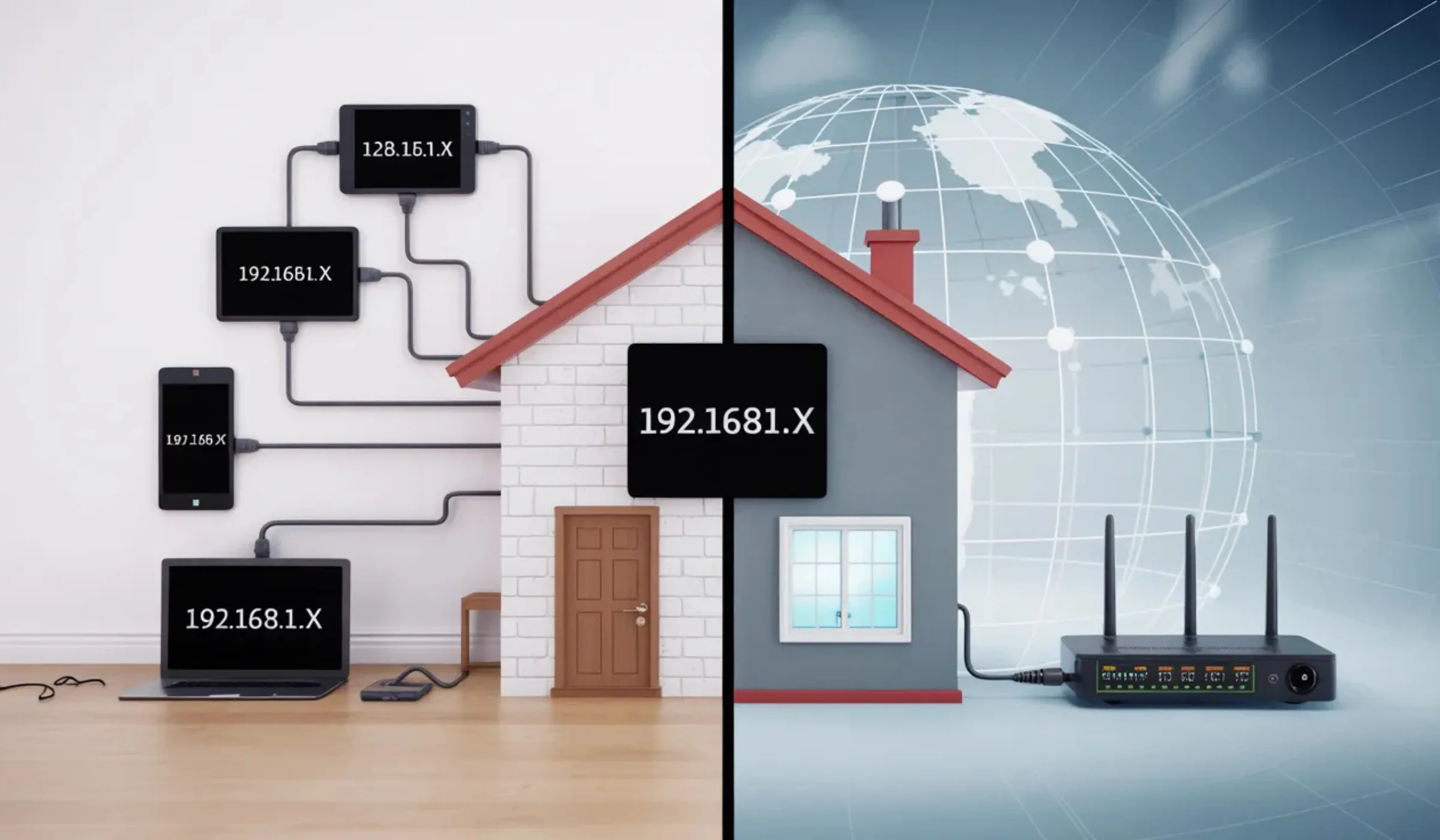
192.168.0.1 or 192.168.1.1 in a browser). Default login is usually on a sticker on the router.Wi-Fi name, password, port forwarding, parental controls, guest network settings — all gone. Only do this if nothing else works. Write down your ISP login credentials (PPPoE username/password) before resetting, if applicable.
Quick-Reference: All 10 Fixes at a Glance
Print this out, bookmark it, screenshot it — whatever works. Next time you see “Connected, No Internet,” start at the top and work your way down.
| # | Fix | Difficulty | Time | Works On | Solves |
|---|---|---|---|---|---|
| 1 | Restart Router & Modem | Easy | 3 min | All devices | ~60% of cases |
| 2 | Check One vs All Devices | Easy | 1 min | All devices | Diagnosis step |
| 3 | Check ISP Outage | Easy | 2 min | All devices | ISP-side issues |
| 4 | Check Cables & Hardware | Easy | 3 min | All devices | Physical issues |
| 5 | Forget & Reconnect Wi-Fi | Medium | 2 min | Per device | Corrupt Wi-Fi data |
| 6 | Flush DNS Cache | Medium | 1 min | Windows / Mac | Stale DNS entries |
| 7 | Switch DNS Server | Medium | 3 min | All devices | ISP DNS failures |
| 8 | Reset Network Settings | Advanced | 5 min | Per device | Deep config issues |
| 9 | Disable VPN / Proxy | Advanced | 2 min | Per device | VPN/proxy conflicts |
| 10 | Firmware Update / Factory Reset | Advanced | 10 min | Router | Firmware bugs |
When to Call Your ISP (Don’t Waste More Time)
Sometimes the problem genuinely isn’t on your end. Here’s when to stop troubleshooting and pick up the phone:
Modem “Online” Light Is Off
If your modem’s internet/online/DSL light won’t turn on even after a full restart, the signal from your ISP isn’t reaching your home. That’s their problem to fix.
Neighbors Are Down Too
If people on your street are having the same issue, it’s an area-wide outage. Call your ISP to report it and get an estimated restoration time.
Problem Keeps Coming Back
If you fix it but it returns daily or weekly, there may be a line quality issue or failing modem. ISPs can run remote signal tests and replace faulty equipment for free.
You Tried Everything Above
If all 10 fixes failed, the issue is likely outside your home — a bad line, a provisioning error, or an authentication problem your ISP needs to resolve on their end.
General Internet Help Line: (855) 578-9498
Frequently Asked Questions
This means the problem is with your phone specifically, not your internet connection. The most common causes are a corrupt Wi-Fi configuration on the phone, an IP address conflict (two devices got the same local IP), or a VPN/proxy running in the background. Try forgetting the Wi-Fi network and reconnecting (Fix #5). If that doesn’t work, reset your phone’s network settings (Fix #8). On iPhone: Settings → General → Transfer or Reset iPhone → Reset → Reset Network Settings. On Android: Settings → System → Reset Options → Reset Wi-Fi, Mobile & Bluetooth.
“No Internet, Secured” is Windows telling you two things: your Wi-Fi connection to the router is encrypted and working (that’s the “Secured” part), but the router can’t reach the internet (that’s the “No Internet” part). It’s the exact same issue as “Connected, No Internet” — just Windows-specific wording. Start with Fix #1 (restart router/modem) and work through the list. If only your Windows PC is affected, try flushing DNS (Fix #6) or running these commands in an admin Command Prompt: netsh winsock reset then netsh int ip reset, then restart your PC.
Yes, we actually recommend it. Google DNS (8.8.8.8) and Cloudflare DNS (1.1.1.1) are faster and more reliable than most ISP-provided DNS servers. Cloudflare is the fastest in independent tests and also offers better privacy. Changing your DNS on your router (rather than individual devices) applies the improvement to every device on your network. It’s a 3-minute settings change that prevents many “connected but no internet” issues caused by ISP DNS failures — and it slightly speeds up your browsing too. There’s no downside.
Daily drops at the same time usually point to one of three things: network congestion in your neighborhood during peak hours (typically 6–10 PM), your ISP renewing your IP lease on a schedule, or an overheating router. If it happens during peak evening hours, it’s likely congestion — especially common on cable internet. If it happens at an odd time (like 3 AM), your ISP might be doing automatic maintenance or IP lease renewals. Try restarting your router and checking if the problem persists. If it keeps happening, call your ISP — they can check signal levels and potentially fix a line issue. Phone: (855) 578-9498.
Absolutely. If the Ethernet cable between your modem and router is damaged, kinked, or has a loose connector, it can cause intermittent or complete loss of internet while the Wi-Fi network itself stays up. Your devices connect to the router’s Wi-Fi (so they show “connected”), but the router can’t get data from the modem (so there’s “no internet”). Try swapping the cable between the modem and router with a known-good one. Also check that the cable clicks firmly into both ports. This is one of the most overlooked causes and costs about $5 to fix.
5G home internet (T-Mobile, Verizon) can be slightly more prone to brief “connected but no internet” moments because the connection depends on the cellular signal from nearby towers. Weather, tower congestion, or temporary signal drops can cause short outages that cable connections wouldn’t experience. However, 5G gateways are designed to automatically reconnect within seconds. If you’re on 5G home internet and experiencing this frequently, try repositioning your gateway closer to a window or on a higher floor. Signal strength is the #1 factor for 5G reliability.
Restarting your router once a month is a good preventive habit. Some people schedule an automatic reboot through their router’s settings (many modern routers have this option in the admin panel). Monthly restarts clear accumulated memory leaks, refresh the connection to your ISP, and generally keep things running smoothly. If you’re experiencing frequent issues, restarting weekly might be warranted — but if you need to restart your router more than once a week to maintain internet, that’s a sign of a hardware problem, and it might be time for a replacement or a call to your ISP.
Very possibly. Routers older than 4–5 years often start having reliability issues — slower speeds, more frequent disconnections, and yes, “connected but no internet” errors. Older routers also don’t receive firmware updates, which means known bugs go unfixed. If your router is from 2020 or earlier, it’s worth upgrading to a Wi-Fi 6 or Wi-Fi 6E model. If you rent your router from your ISP, call them and ask for a replacement — most ISPs will swap out old equipment for free. Phone: (855) 578-9498.
Yes — a few simple habits prevent most “connected but no internet” issues: restart your router once a month (or set up auto-restart in router settings), keep your router firmware updated (check quarterly), use a reliable DNS server like 1.1.1.1 or 8.8.8.8 instead of your ISP’s default, make sure your router has proper airflow and isn’t overheating, replace your router every 4–5 years, and keep your ISP’s support number handy so you don’t waste time troubleshooting outages that are on their end. These steps prevent about 80% of home internet issues before they happen.
Last updated March 2026. These troubleshooting steps work for most common “connected but no internet” issues across all major operating systems and internet providers. Advanced fixes involving command-line tools should be performed carefully. If you’re not comfortable running terminal commands, contact your ISP or a qualified technician. ISP support phone numbers are accurate as of publication but may change. We are not affiliated with any internet service provider mentioned in this guide.